
June 20, 2026 · 9 min read · By MagicBG Team
Last updated: September 15, 2026
Transparent PNG Has a White Halo? Fix Edge Fringing
Why your cutout shows a white halo, gray outline or fuzzy fringe on colored backgrounds — and the exact fixes for clean, professional edges.
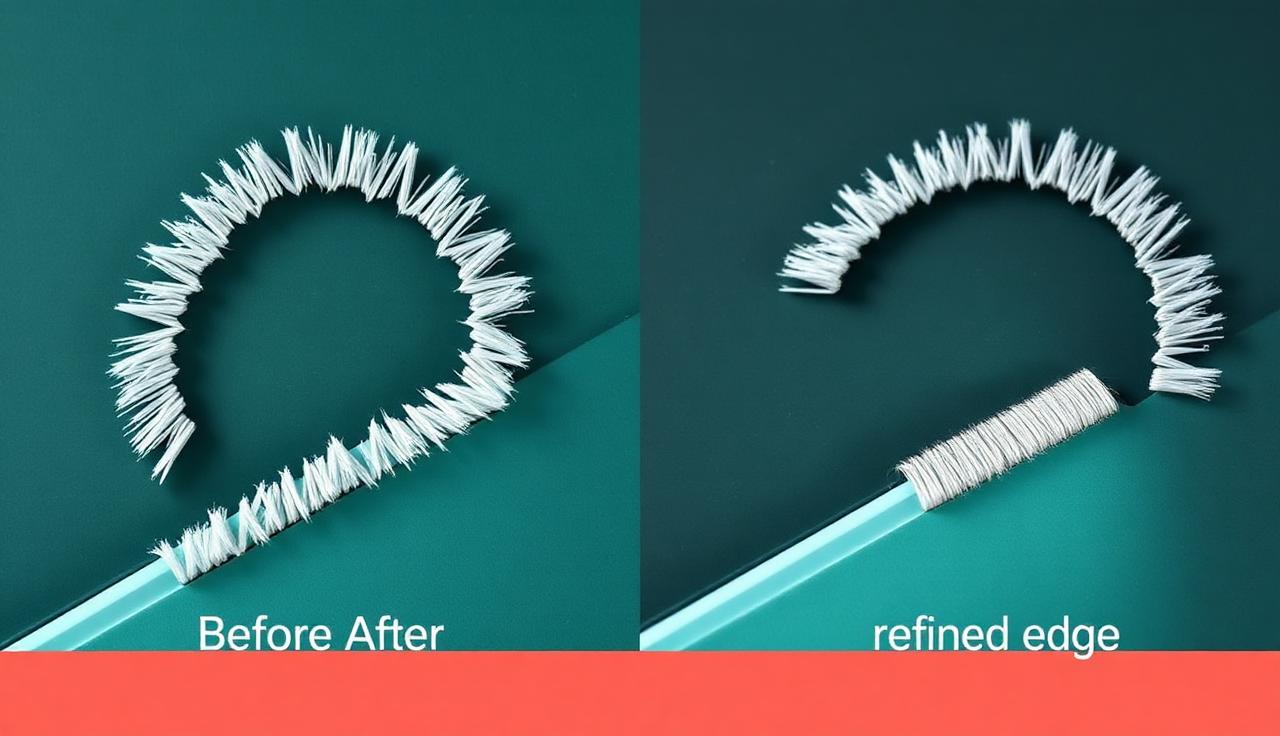
You removed the background, the PNG looked perfect on the white editor canvas — then you dropped it onto a dark or colored background and a faint white halo appeared around the edges. This is one of the most common background-removal problems, and it has nothing to do with "bad AI." Here's why it happens and how to fix it.

Why the halo happens
At the boundary of any subject, pixels are partially transparent — they're a blend of the subject and the original background. If the original background was white, those edge pixels are part-white. On a white canvas you can't see it; on a colored background, that leftover white reads as a glowing fringe. This is called color contamination or edge fringing.
Fix 1: Shoot against a contrasting background
Prevention beats correction. If your subject is light, photograph it against a darker, contrasting backdrop (and vice versa). The AI separates high-contrast edges more cleanly, leaving far less contaminated pixels to begin with. This single change removes most halos before they exist.
Fix 2: Use "defringe" / edge decontamination
Most editors have a tool that recolors edge pixels to match the subject instead of the old background — Photoshop calls it matting/defringe. It samples just inside the edge and replaces the contaminated rim, killing the white outline.
Fix 3: Contract the mask by 1–2 pixels
Shrinking the selection edge slightly trims off the half-transparent rim entirely. You lose a hair of detail but gain a clean edge — ideal for hard-edged products. Avoid over-contracting on hair or fur, where the soft edge is the point.
Fix 4: Match the destination background
If you already know the cutout will sit on, say, a navy background, place it there beforejudging the edge. Sometimes the "halo" is just the eye reacting to a hard transition, and a subtle 1px feather blends it naturally.
Special case: hair and fur
Wispy edges are the hardest. Don't try to harden them — instead, decontaminate color and keep the soft transition. For a deeper walkthrough of strands and jagged edges, see our dedicated guide on fixing jagged edges after background removal.
Special case: light products on white
A white mug on a white background is the classic halo trap — there's almost no contrast for the AI to find. Re-shoot on gray or a colored sweep, or accept that you'll need defringing. This comes up constantly in e-commerce product photography.
Fixing jagged, stair-stepped edges
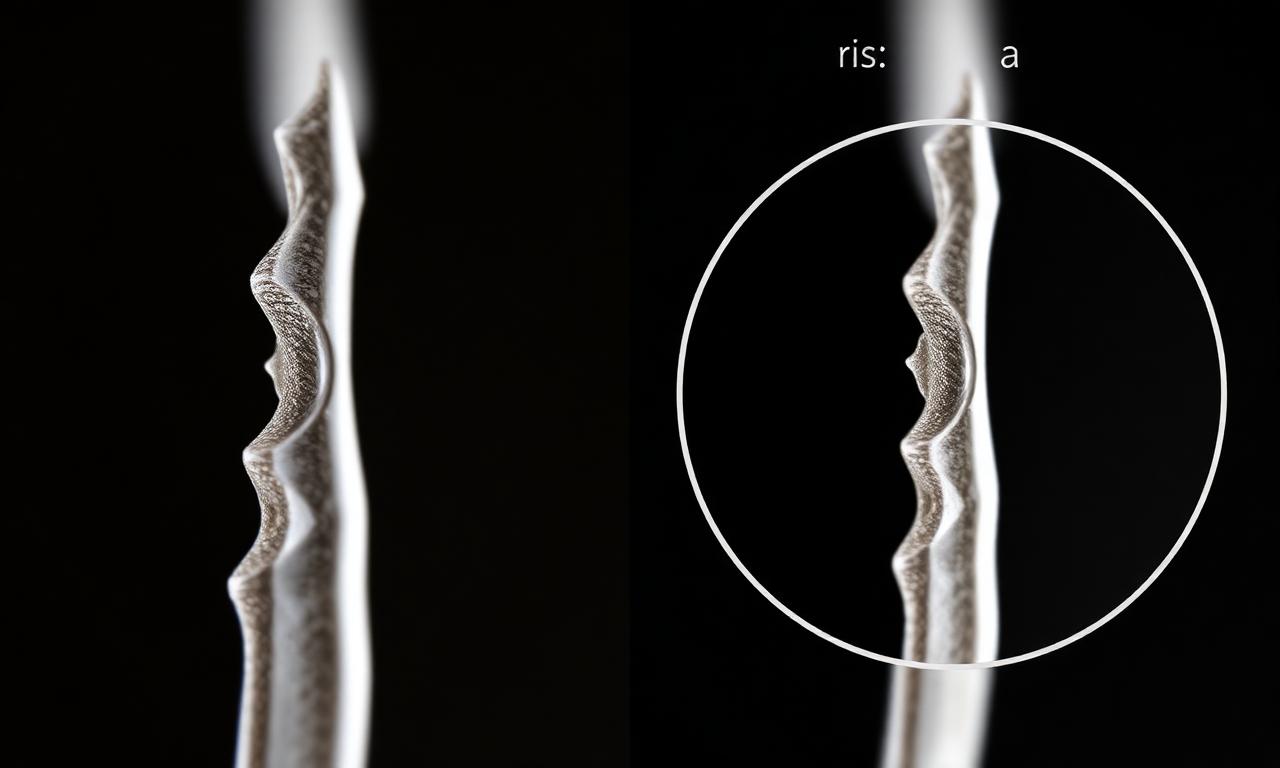
A halo is leftover color; jagged edges are a different problem — a hard, aliased outline that looks stair-stepped or pixelated, especially on curves and diagonals. The fix is a quick three-step routine that resolves the vast majority of cases in under a minute.
- Feather the mask by 0.5–1px. A tiny feather softens the stair-step without turning the whole subject blurry.
- Contract, then feather. Pull the selection in by a pixel first so the feather eats the contaminated rim instead of adding a glow.
- Re-export at full resolution. Downscaling a hard-edged cutout exaggerates aliasing; export at the original size, then resize as the last step.
For fine detail like hair and fur, don't harden the edge at all — keep the soft transition and only decontaminate the color, exactly as described above.
FAQ
Why does my PNG only show a halo on colored backgrounds?
Because the leftover edge pixels are partly white. White-on-white hides it; white-on-color exposes it. Decontaminate the edge or re-shoot with more contrast.
Does exporting as WebP cause halos?
No — the halo is in the edge pixels, not the format. But lossy compression can make an existing fringe look worse. See PNG vs WebP.
Can a free tool give clean edges?
Yes. Good source contrast plus a quick defringe gets professional edges for free. Start on the MagicBG background remover.
Bottom line
A white halo is leftover background color in the edge pixels — not a broken cutout. Shoot with contrast, decontaminate the edge, and contract the mask a pixel or two. Re-export your transparent PNG on the MagicBG background remover and check it against a dark background before you ship it.
Where this fits in the workflow
Halos are easiest to spot against a solid colour. Preview the cutout on white with the white background maker before you export, and re-run the cutout in the background remover if the fringe came from the mask rather than the edit.