May 18, 2026 · 12 min read · By MagicBG Team
Last updated: September 26, 2026
Last verified: September 22, 2026 · Official sources: WhatsApp Help Center — How to create stickers · WhatsApp sticker spec (GitHub)
Make WhatsApp Stickers from Photos: Free Transparent PNGs
Make WhatsApp stickers from your own photos in 2026 — transparent PNG, correct 512×512 size, free AI background remover. No app install required.
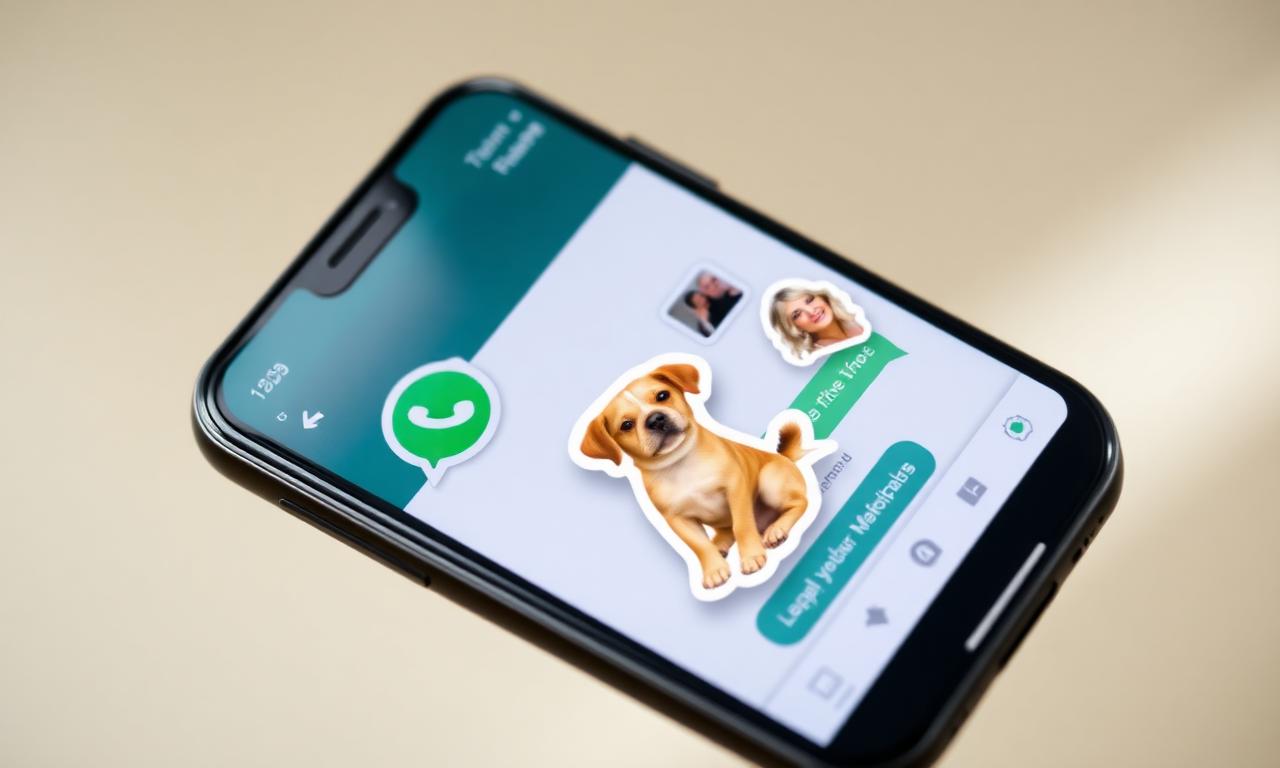
WhatsApp passed three billion monthly users in early 2026, and stickers are quietly the fastest-growing visual format inside the app. Group chats now look more like meme threads than conversations, and a personal sticker pack — your face, your dog, your in-jokes — has become one of the simplest, highest-leverage forms of self-expression online. The good news: making one no longer requires Photoshop, a $4.99 app, or any signup. With a free AI background remover and the official WhatsApp sticker format, you can turn a camera-roll photo into a published sticker pack in under five minutes.
What changed in 2026
Two things shifted in the last year. First, WhatsApp opened up third-party sticker imports on both iOS and Android, removing the previous requirement to use a single official editor. Second, browser-based AI background removal got good enough — and fast enough — to replace dedicated sticker apps entirely. Where 2023's "make a sticker" workflow took a few minutes per image and often required a paid app, the 2026 version takes about ten seconds per sticker and runs entirely in your browser through a WebGPU-accelerated segmentation model. Nothing uploads to a remote server, which matters when you're processing pictures of your kids, your friends, or your private life.
The official sticker specification from Meta lives on the WhatsApp Help Center. The numbers are simple: each sticker must be a 512×512 PNG with a transparent background, weighing no more than 100 KB. The tray icon is 96×96, under 50 KB. A pack can contain between 3 and 30 stickers. That's the entire spec. Hit it and WhatsApp will accept your pack.
The quick recipe (under 5 minutes)
- Pick 3 to 30 photos with a single clear subject — your face, a pet, a friend, a product. Anything goes.
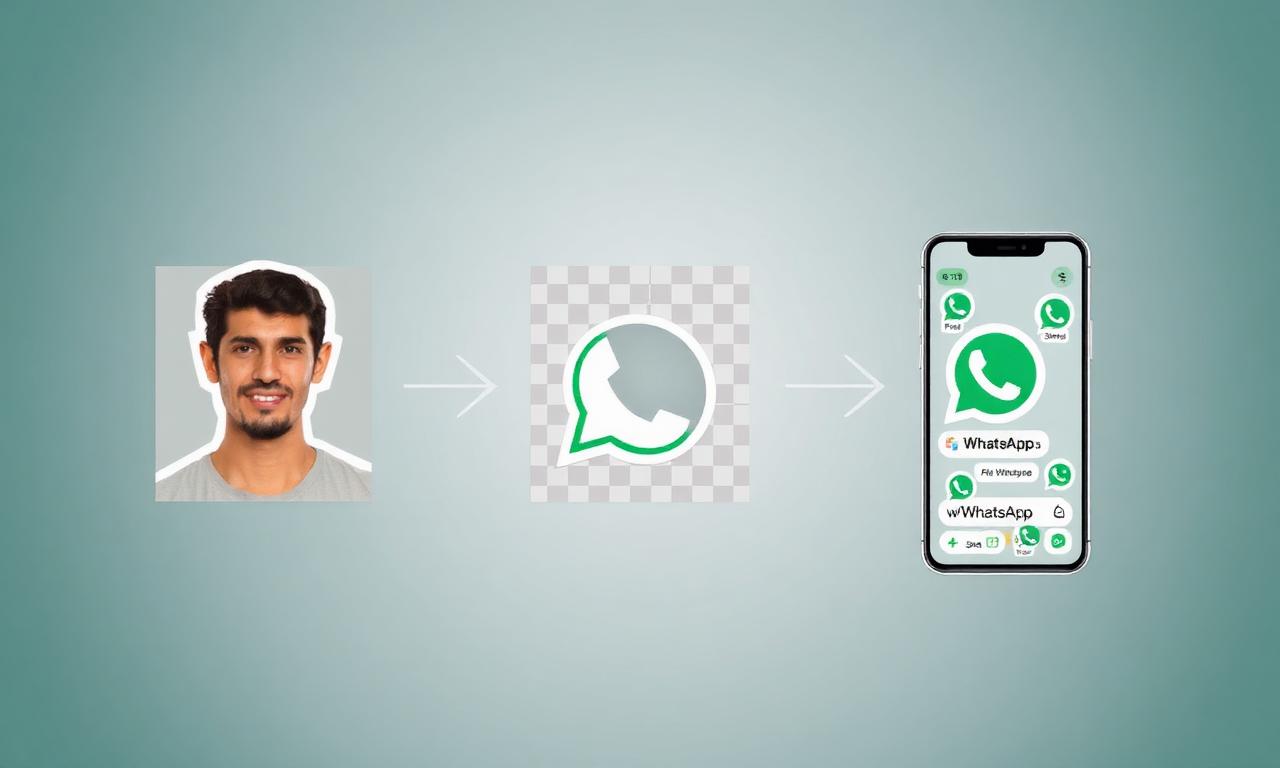
- Remove the background on each photo using a free AI tool like MagicBG. The result is a transparent PNG.
- Resize to 512×512 with the subject centered and a few pixels of padding.
- Import into WhatsApp using a free sticker maker app or by sharing directly from your gallery.
- Send your first sticker, watch the chat react, repeat.
Step 1 — Pick photos that will actually work
A sticker only lands when the subject is instantly readable at a 100-pixel preview size in a chat. That means selfies framed from the shoulders up, pets with a clear pose, objects shot against a contrasting background. Group photos with five people standing in a line make terrible stickers — the faces are too small. The same five people each photographed alone make five great stickers.
- Faces: shoulders-up framing, eyes visible, one clear expression per sticker.
- Pets: mid-action poses (yawning, jumping, tilting head) read better than static sits.
- Objects: products, plants, food — anything with a clean silhouette.
- Avoid: motion blur, heavy shadows, busy backgrounds the same color as the subject.
If you're shooting photos specifically for stickers, take five seconds to do it right: wipe the lens, shoot in Portrait Mode if you have it (the depth map dramatically helps AI segmentation), and pick a background that contrasts with your subject. A friend in a red sweater against a red couch will frustrate every cutout tool on earth. The same friend two steps to the right, against a white wall, becomes a perfect sticker in under three seconds.
Step 2 — Remove the background with free AI
This is the step that used to be hard. In 2026 it isn't. Open MagicBG in any modern browser — Safari and Chrome both work on phones and desktop. Drop the photo into the upload zone. The first visit downloads a small AI model (about 44 MB) and caches it; every photo after the first cuts out in roughly two seconds without ever leaving your device. Download the result as a transparent PNG.
If you're new to AI background removal, the longer complete guide to background removal walks through the model choices, edge handling, and quality tradeoffs. For sticker-specific work, three things matter:
- Edge quality on hair and fur — modern segmentation handles this well, but a clean source photo helps. Our deeper write-up on fixing jagged edges covers the cleanup tricks if you need them.
- Color fringing — sometimes a halo of the old background color survives. A one-pixel feather or a defringe slider removes it. Stickers are tiny on screen, so a clean edge matters more than usual.
- Resolution — you'll end up at 512×512, so the source only needs to be at least that large after the subject is cropped. A 24-megapixel iPhone photo gives plenty of room.
Step 3 — Resize to 512×512 the smart way
WhatsApp requires square 512×512 PNG files. Three free ways to get there, depending on your device:
On iPhone
- Open the transparent PNG in Files.
- Tap Share → Markup, then use Image Size in the toolbar to set 512×512. Save back to Files.
- For batches, the free Shortcuts action Resize Image handles dozens at once.
On Android
- Open the PNG in Google Photos and tap Edit → Crop → 1:1 square.
- Use a free app like Sticker Maker or Personal Stickers (more on import flow below) — both auto-resize on import.
On desktop
- Photopea is a free in-browser Photoshop clone. Image → Image Size → 512×512 → File → Export As → PNG.
- For batches, ImageMagick handles entire folders with one command:
magick mogrify -resize 512x512 *.png.
Center the subject with five to ten pixels of padding on every side. Stickers that touch the edges look cramped at chat-bubble size.
Step 4 — Import the pack into WhatsApp
WhatsApp does not have a built-in sticker creator; it relies on third-party apps that follow the official spec. The two cleanest, ad-free, free-tier options in 2026:
- Sticker Maker Studio (iOS) — open the app, tap Create new sticker pack, name it, add 3–30 of your transparent PNGs, then tap Add to WhatsApp. The pack appears immediately under your stickers tab.
- Personal Stickers for WhatsApp (Android) — same flow, with a built-in cropper if you skipped step 3.
Both apps comply with the open-source spec Meta publishes on github.com/WhatsApp/stickers, so the pack is a real, native WhatsApp sticker pack — not a screenshot of an image. You can also build your own import bridge using that repo if you're a developer; the iOS sample is Swift and the Android sample is Kotlin/Java.
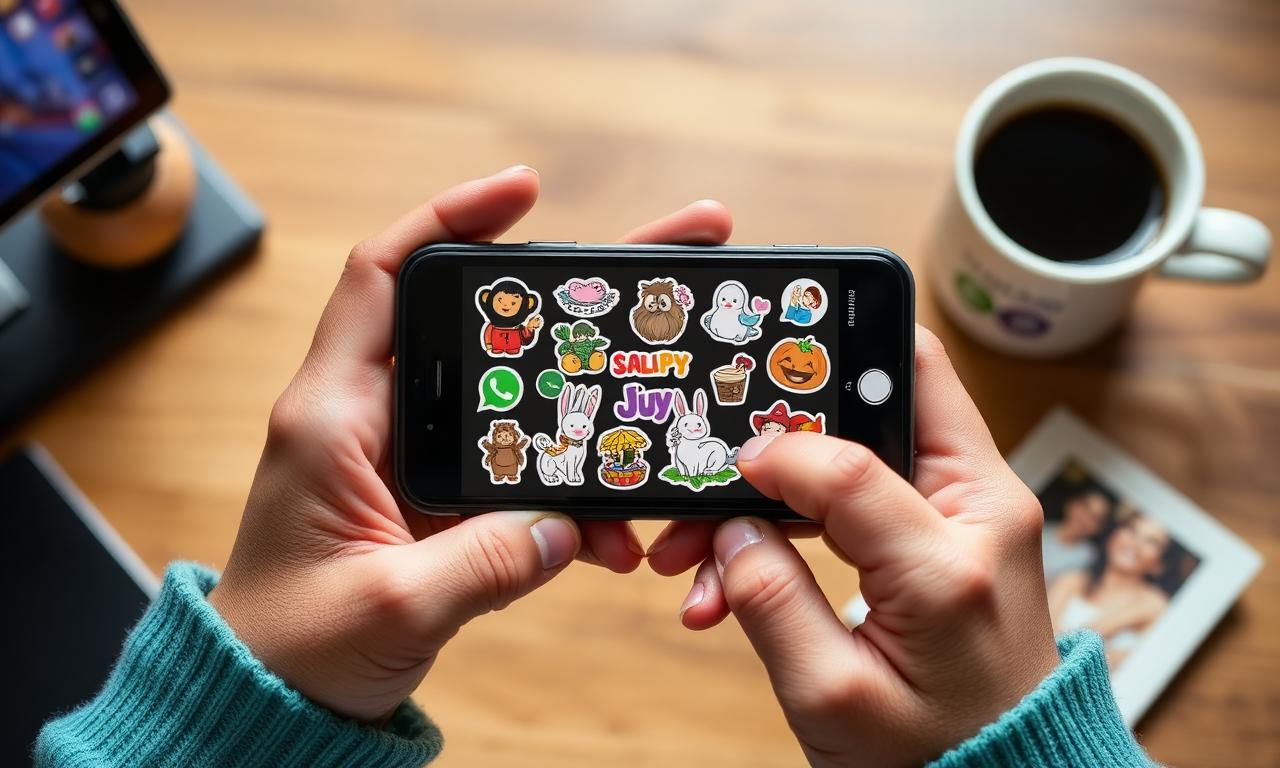
What about animated stickers?
WhatsApp supports animated stickers as 512×512 WebP files at 8–10 FPS, capped at three seconds and 500 KB. The making is a different workflow — you need a transparent video or a sequence of transparent PNGs that you then encode as animated WebP. The 2026 shortcut: record a short Live Photo or a 1–2 second clip, run each frame through the same browser AI tool, then assemble with a free tool like ezgif's APNG to WebP converter. We're working on a dedicated animated-sticker guide; for now, this one covers static stickers.
Format tips that save you a re-export
- Always export PNG, never JPG. JPG has no transparency — your "sticker" would ship with a white box around the subject. Prepare your stickers as transparent PNGs; the sticker apps convert them to the WebP files WhatsApp stores internally, so you never have to encode WebP yourself.
- Stay under 100 KB per sticker. A 512×512 PNG with a clean transparent background is almost always well under this. If you're hitting the cap, you've probably exported at 1024×1024 by accident.
- WebP is fine too, if your editor exports it. WhatsApp accepts both formats. The wider PNG vs WebP tradeoff for transparent images is covered in PNG vs WebP for transparent images.
- Use a tray icon that reads at 96 pixels. A face, a logo, a single object. Not five things squashed into a square.
Ten high-leverage sticker pack ideas
- Reaction faces — five of your own expressions: laughing, crying, shocked, thinking, eye-roll. The most-used sticker pack any group chat will ever see.
- Pet pack — yawning, sleeping, judging, demanding food, holding a toy.
- Couple pack — a wedding gift that ages in real time, used daily.
- Friend group pack — each member of the group as their own sticker.
- Travel pack — photos from a trip turned into a private memory pack you share with family.
- Small business pack — your products as stickers customers can drop into chats when recommending you.
- Team pack — colleagues' faces, perfect for Slack-style banter in remote-first companies.
- Meme pack — your in-jokes, with the cutout subject placed over different backgrounds.
- Kids pack — your child's expressions, sent to grandparents who live far away.
- Brand pack — for content creators, your face and logo as a free promotional asset fans actually want to install.
A note on privacy
Most "free sticker maker" apps from the 2018–2022 wave upload your photos to a remote server to remove the background, then return the cutout. That worked, but it meant a stranger's S3 bucket had a copy of every photo you ever made into a sticker — including pictures of your kids, your home, and your friends. The 2026 workflow recommended above keeps everything on-device: the AI segmentation model runs locally in your browser through WebGPU, and the sticker-import apps only need access to the files you explicitly add to a pack. If you'd like the technical background on why on-device AI became viable, the how AI background removal works deep-dive covers the model sizes and hardware requirements.
Troubleshooting: when WhatsApp rejects a pack
- "Sticker too large" — your PNG is bigger than 100 KB. Re-export at 512×512 or run it through a free PNG compressor like TinyPNG.
- "Invalid sticker size" — the file isn't exactly 512×512. Some editors export 511×512 or 513×513 if you crop visually. Resize explicitly.
- "Sticker is not transparent" — usually means the file is a JPG with a .png extension, or the background was filled with white. Re-run the cutout step and re-export.
- Pack disappears from WhatsApp — if you delete the source app (Sticker Maker Studio, etc.), the imported pack disappears too. Keep the editor app installed.
Are custom WhatsApp stickers legal to share?
If the source photo is yours (or you have permission from the people in it), the cutout and sticker are yours to share. Stickers made from copyrighted material — logos, movie screenshots, celebrity photos — fall into the same gray zone as memes: technically infringing, almost never enforced inside private chats, and definitely a problem if you try to monetize them publicly. The fuller breakdown is in the background-removal FAQ.
Bottom line
Custom WhatsApp stickers used to be a small luxury — fiddly enough that most people gave up before finishing a pack. In 2026 the friction is gone: a browser tab and a five-minute window are all you need. Open MagicBG on your phone, drop in a handful of photos, export the transparent PNGs at 512×512, and import them into WhatsApp through a free sticker maker. Your group chat will never be the same.
Where this fits in the workflow
Stickers have hard limits: 512×512 and a small file. Square the image with the cropper, set the exact size in the resizer, and trim the weight with the compressor if the app rejects the upload.
Selling this photo on Amazon, Etsy, eBay, Walmart or another marketplace? MagicBG's Complete Listing Generator turns a single product photo into a full marketplace-ready listing — optimized images, title, bullets, description and keywords.