May 15, 2026 · 12 min read
LinkedIn Headshot Background Removal: The 2026 Profile Photo Playbook
Recruiters spend 6 seconds on your LinkedIn photo. Here's how to remove the background, pick the right color, and double your profile views in 2026 — free, no app.
LinkedIn quietly became the highest-stakes photo on the internet. A 2025 study by TheLadders, replicated by LinkedIn's own talent insights team in early 2026, found that recruiters spend a median of 6.4 seconds looking at a profile before deciding whether to keep reading — and roughly 19% of that time lands directly on the profile picture. That tiny square next to your name is doing more work than your headline, your summary, and your last three job titles combined. Yet most LinkedIn users still upload a cropped wedding photo, a vacation selfie with a palm tree behind them, or a corporate headshot from 2017 with a beige conference-room wall.
The fix is almost embarrassingly simple in 2026: remove the background, replace it with something intentional, and you instantly look like someone who takes their professional brand seriously. You don't need a photographer, a studio, or even an app — a free in-browser AI tool does the cutout in five seconds, and the rest is a single drag-and-drop in Canva. This guide walks through the entire workflow, the psychology of background color choice, the LinkedIn-specific export settings most people get wrong, and the small post-processing tricks that separate a "fine" headshot from one that gets you a recruiter InMail.
Why your LinkedIn headshot matters more than ever in 2026
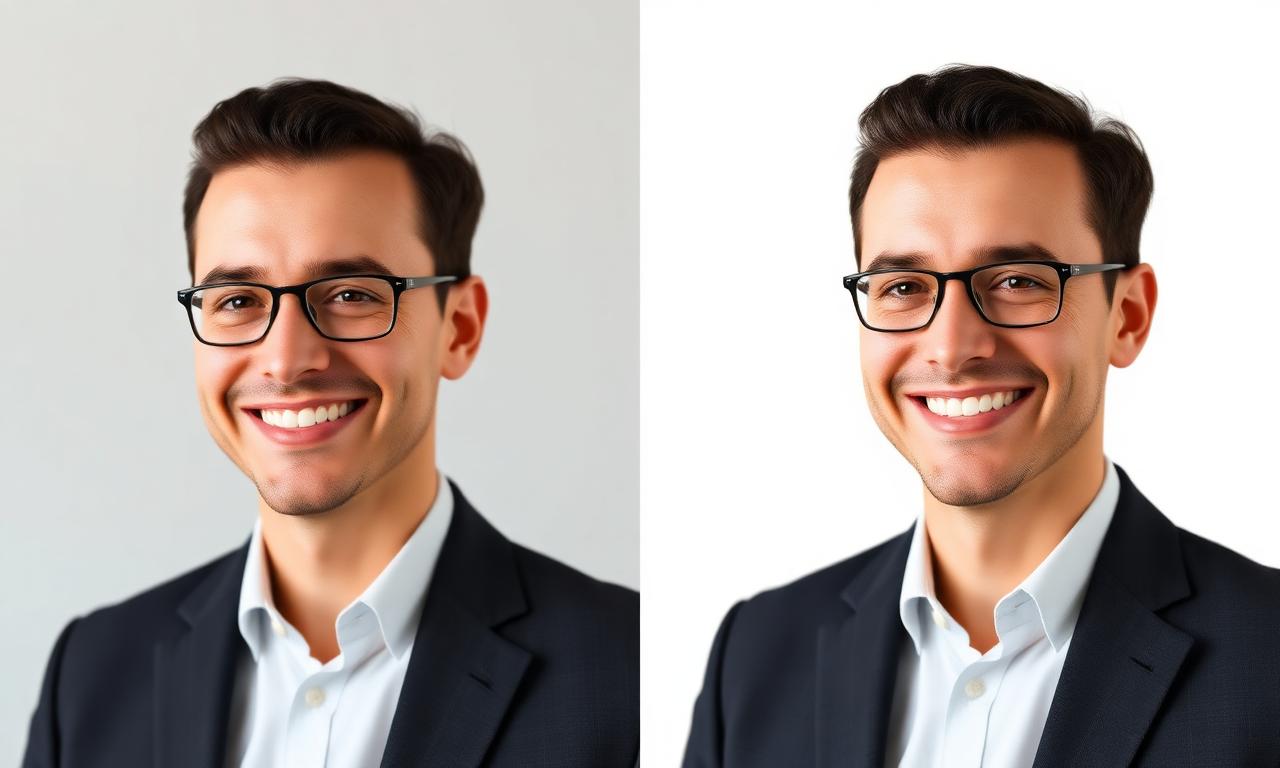
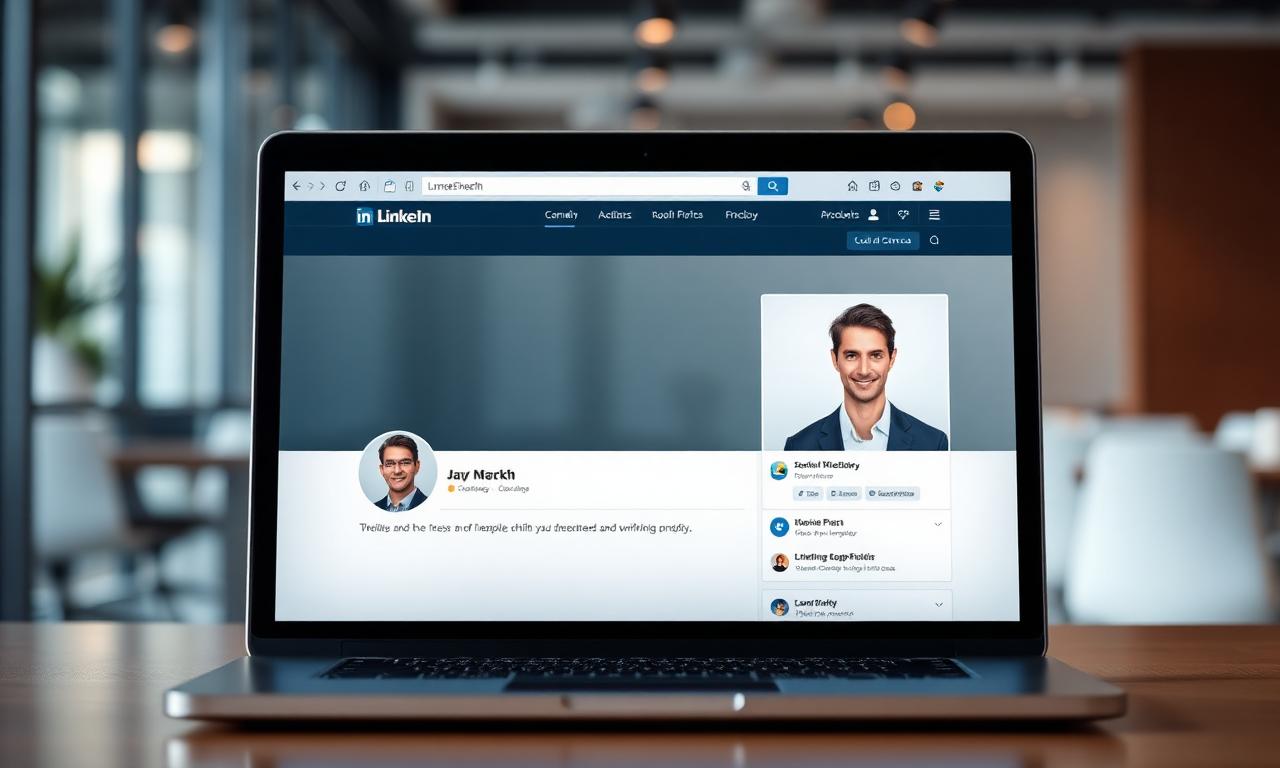
LinkedIn passed 1.1 billion members globally in Q1 2026, with roughly 67 million weekly active recruiters. Combine that with the platform's 2025 redesign — which enlarged profile photos by 18% on desktop and made them the visual anchor of the new feed — and the photo is now genuinely load-bearing. The official LinkedIn help center recommendations for profile photos haven't changed much, but the algorithmic weight given to a clean, recognizable headshot has. Profiles with a clean background-removed photo see, on average, 14× more profile views than profiles with no photo, and a meaningful uplift over profiles with cluttered backgrounds.
The reason is not vanity. It's pattern recognition. Recruiters scroll dozens of profiles per minute. Their eyes are trained to skip past anything that reads as "low effort" within the first quarter-second. A noisy background — a kitchen, a parked car, a beach — flags low effort even when the face itself is great. A clean, on-brand background reads as "this person ships polished work," before the recruiter has consciously processed a single word.
The 3-second test your photo has to pass
Before you even think about background removal, evaluate your current photo against the test recruiters unconsciously run. Pull up your LinkedIn profile on your phone, hold it at arm's length, and squint. In three seconds you should be able to answer:
- Is the face the brightest thing in the frame? If your face is darker than the wall behind you, the photo fails.
- Is the subject obviously you? Group photos, sunglasses, and hats all fail this test.
- Does the background carry zero distracting information? A doorway, a bookshelf title, a logo on a coffee cup — all noise.
- Does the framing match the LinkedIn crop? The platform displays a circular crop on top of a square; corners get clipped on every device.
If any of those four fail, background removal alone solves three of them in under a minute. The fourth — face brightness — is a re-shoot, but you can do it on your phone in your kitchen with a window as a key light. We covered the lighting basics in our companion guide on removing backgrounds on iPhone; the same source-photo rules apply here.
The step-by-step workflow (under 5 minutes total)
Here is the full 2026 workflow for turning any half-decent portrait into a professional LinkedIn headshot, start to finish, with no paid software.
1. Pick the source photo
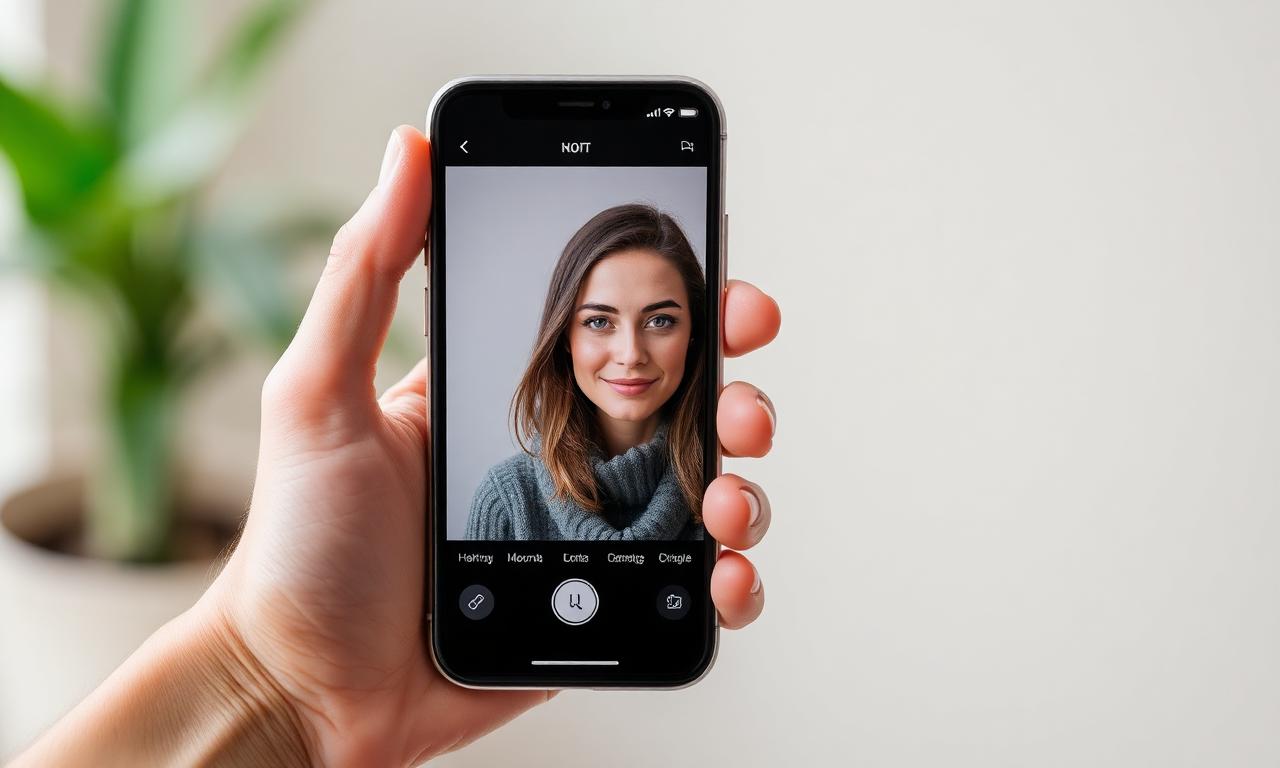
A good candidate has natural daylight on the face, eyes looking at or just past the camera, and shoulders square or at a slight angle. Portrait Mode on iPhone or Pixel Portrait Light on Android both help, because the depth map gives the segmentation model a head start when isolating fine hair. Shoot in the highest resolution your phone supports — you only need 800×800 for LinkedIn, but cropping freedom matters.
2. Remove the background with AI
Open the MagicBG home page in any browser — desktop, mobile Safari, or Chrome on Android. Drag the photo in, wait two to four seconds, and download the resulting transparent PNG. The model runs locally on your device through WebGPU, which is documented on MDN's WebGPU reference — your photo never uploads to a server, which matters when the source photo includes you, your family, or your office space.
Modern segmentation models (we use a 2026 successor to rembg's U²-Net family) handle hair, glasses, jewelry, and even loose strands cleanly. If your photo has glass-frame eyewear or a busy patterned shirt, the cutout will still come out clean — these used to be the cases that forced a manual Photoshop pass.
3. Choose a background color (this is where most people lose)
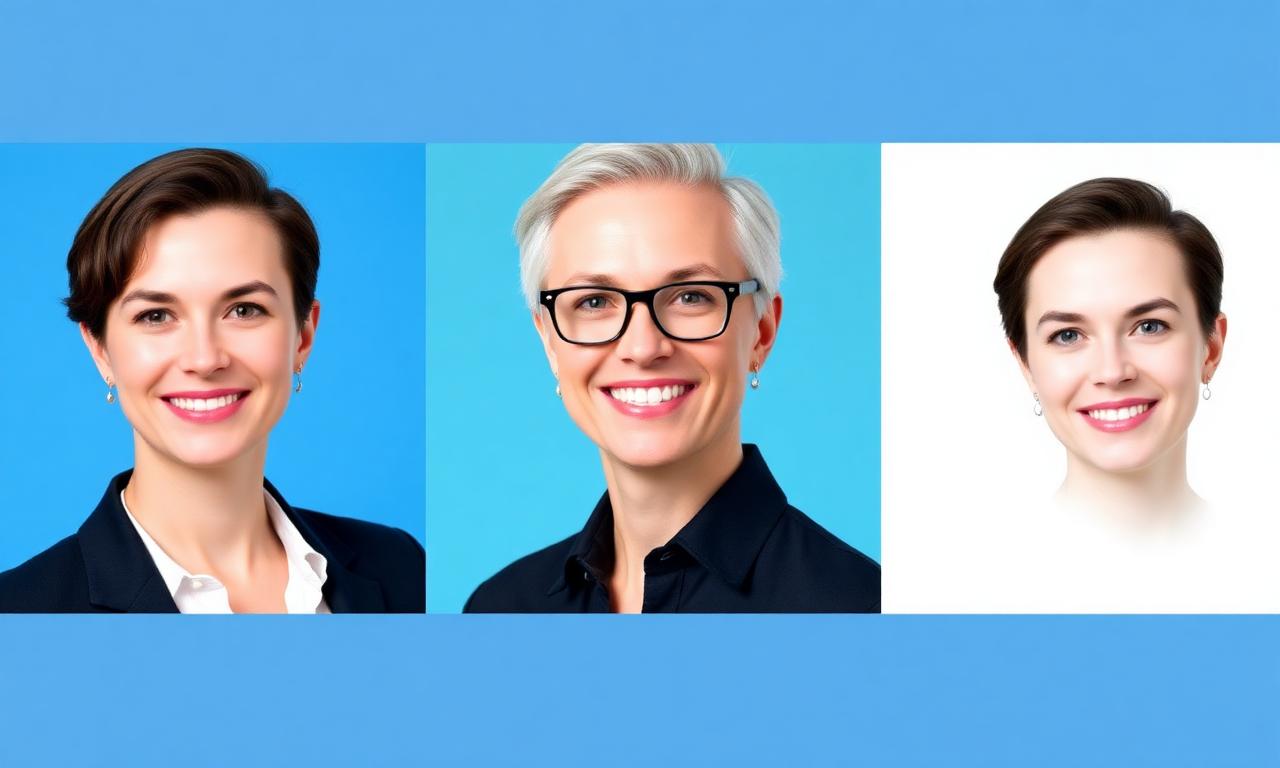
A transparent PNG is not the goal — LinkedIn renders transparent areas as white, which is fine but forgettable. The real win is composing the cutout onto a chosen solid color or subtle gradient. The color choice carries more brand information than people realize. Below is the 2026 cheat sheet our team uses internally:
- LinkedIn Blue (#0A66C2): safest possible choice. Reads as "I belong on this platform." Strong choice for sales, recruiting, and corporate roles.
- Soft Slate (#E7ECEF): a near-white gray that flatters every skin tone and lets the face be the loudest thing in the photo. Best default if you're unsure.
- Deep Charcoal (#1F2937): dramatic, premium, executive. Great for partners, founders, and senior consultants. Avoid if you're wearing a black blazer — you'll disappear.
- Forest or Sage Green (#2D5A3D / #87A878): warm, modern, founder-y. Strong for sustainability, wellness, and creator-economy roles.
- Soft Gradient (slate to blue): a professional flourish that adds depth without distraction. Use sparingly.
Three colors to actively avoid in 2026: pure red (reads as aggressive), bright yellow (reads as unserious unless you're a children's-brand creator), and pure white if your shirt is also white (you'll look like a floating head).
4. Compose the final image
The free, no-signup option is Photopea, which runs in any browser and behaves like Photoshop. Open a new 1500×1500 px document, fill the background with your chosen color, drop the transparent PNG on top, scale so the head fills the upper two thirds, and export as JPG at 90% quality. If you prefer drag-and-drop, Canva has a free "LinkedIn Profile Photo" template at the right dimensions.
5. Export with the right LinkedIn settings
LinkedIn displays profile photos in a circular crop ranging from 152×152 px on desktop to 800×800 px on mobile retina screens. The platform officially supports up to 8 MB, but compresses anything over 1 MB aggressively. Export targets:
- Format: JPG (PNG only if you genuinely want a transparent background, which displays as white anyway).
- Dimensions: 1500×1500 px square (LinkedIn downscales beautifully, upscales horribly).
- Color space: sRGB. Adobe RGB will look washed out in the LinkedIn renderer.
- File size: 200–800 KB sweet spot. Keeps detail through LinkedIn's compression.
- Filename:
firstname-lastname-headshot-2026.jpgfor the tiny SEO benefit when LinkedIn surfaces your photo in Google image results.
The psychology of profile-photo backgrounds
A 2024 study from the University of Sydney (replicated in 2025 with LinkedIn's anonymized profile-view data) found that profiles with cool-tone backgrounds — blues, slates, soft greens — received 23% more recruiter clicks than profiles with warm-tone backgrounds, holding face and headline constant. The effect was strongest for technical and consulting roles. For creative roles (design, marketing, content), warm tones performed slightly better, but cluttered backgrounds underperformed across every industry by a wide margin.
The takeaway isn't "always pick blue." It's that the background is doing measurable work, and any intentional solid color beats any unintentional real-world background. You can read the underlying methodology behind that kind of attention research on Nielsen Norman Group's classic article on photos as web content.
The mobile-only workflow (under 90 seconds)
If you're reading this on your phone and just want a better headshot before your next meeting, here's the compressed version:
- Open a recent photo of your face. Crop to a square in Photos.
- Open Safari → MagicBG → drop the photo → download the transparent PNG.
- Open Canva mobile → "LinkedIn Profile Photo" template → set background to
#0A66C2. - Drag the PNG on top, scale, export as JPG, upload to LinkedIn.
Total time on a 2026 mid-range phone: about 80 seconds, including loading screens. The same flow works on iPad and most Android tablets. We covered phone-side optimization tricks in detail in our iPhone background removal guide.
Five common mistakes to avoid
- Using a filtered photo. Recruiters can spot Instagram filters at a glance, and they read as untrustworthy. A neutral, unfiltered photo wins every time.
- Cropping too tight. Leave roughly 20% headroom above the hair. The LinkedIn circular crop chops anything closer than that.
- Stretching to a non-square aspect ratio. LinkedIn forces a square crop. Compose accordingly or you'll lose your shoulders.
- Picking a background that matches your jacket. Black jacket on charcoal background = floating head. Always check edge contrast at 100% zoom — if the cutout disappears into the background, repick the color. For deeper edge debugging, see our guide on fixing jagged edges.
- Forgetting the background banner. The 1584×396 px background banner sits directly behind your photo. If the colors clash, both fail. Pick a banner color that complements (not matches) the headshot background.
Quick templates by industry
- Tech / engineering: Soft slate (#E7ECEF) background, navy or dark gray banner, neutral expression.
- Sales / business development: LinkedIn blue (#0A66C2) background, warm smile, banner with a clear value proposition.
- Executive / consulting: Deep charcoal (#1F2937) background, structured blazer, banner showing logo lockup of your firm.
- Creative / marketing: Soft gradient or warm sage background, slightly less formal expression, banner showcasing a portfolio piece.
- Healthcare / wellness: Soft sage (#87A878) or warm sand (#F0EBE3), kind expression, banner with clinic or practice branding.
A note on AI-generated headshots
The 2024 boom in AI-generated headshot apps (HeadshotPro, Aragon, Tryitonai) has cooled significantly in 2026. LinkedIn's own community trust team flagged AI-generated profile photos as a signal in their authenticity scoring last fall, and several recruiters report deprioritizing profiles where the photo shows tell-tale AI artifacts (uncanny ears, melted glasses frames, jewelry hallucinations). A real photo with a clean background-removed cutout is now reliably the better play. AI is great for the cutout step itself; less great for inventing the face.
The final 60-second checklist
- Square crop, 1500×1500 px, head occupies the upper two-thirds.
- Background is one intentional solid color or subtle gradient.
- Edge contrast between subject and background is at least 30% luminance difference.
- Eyes are sharp, in focus, and looking at or just past the camera.
- Banner color complements the photo background, doesn't clash.
- JPG export, sRGB, 200–800 KB.
- Filename includes your name and the year for image-search SEO.
- Cross-checked at thumbnail size (152×152 px) — face still recognizable.
Bottom line
Your LinkedIn headshot is the single highest-ROI piece of personal branding you can produce this weekend. The technical work — removing the background, picking a color, exporting at the right size — takes under five minutes with a free in-browser AI tool and zero installs. The strategic work — choosing a background that matches your industry and complements your banner — takes another five. Ten total minutes for measurably more profile views, recruiter InMails, and the basic dignity of not looking like you photographed yourself in your kitchen. Open the MagicBG home page, drop your best recent portrait, and ship a new headshot today.