
May 7, 2026 · 12 min read
Pure White Background for Amazon Listings: 2026 Seller Guide
Get Amazon-compliant pure white (RGB 255,255,255) product backgrounds in 2026 using a free AI background remover. Boost CTR and avoid suppressions.
Amazon's product image policy reads like a small piece of legislation, but the part that suppresses the most listings is one sentence: the main product image must use a pure white background, RGB (255, 255, 255), with the product filling at least 85% of the frame. Get this wrong and your ASIN quietly drops out of search, your Buy Box flickers, and your conversion rate cratters. Get it right and you've cleared the highest-leverage technical hurdle on the entire platform.
The good news: in 2026, you don't need a photography studio, a $20-per-image editing service, or a Photoshop subscription to comply. A free AI background remover plus any free image editor will produce fully compliant images in under a minute per product. This guide walks through the exact 2026 workflow, the policy details that trip up most sellers, and the secondary-image tricks that compound the wins.
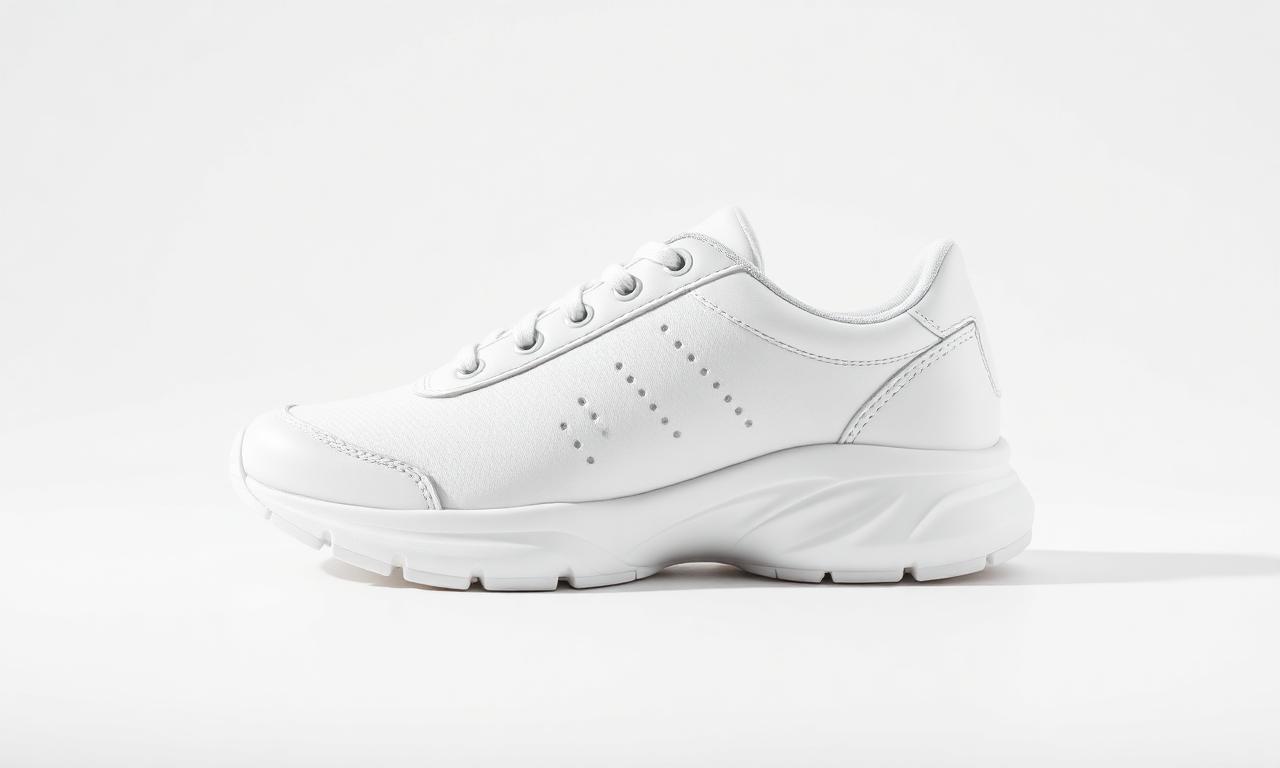
Amazon's official product image style guide spells out the rules, but the business reasons live downstream:
- Search ranking. Compliant images get full algorithmic visibility; non-compliant ones are quietly demoted or suppressed.
- Buy Box experience. A consistent white background across competitors creates a "shelf" feel; off-white or busy backgrounds break that grid and lose clicks.
- Catalog audits. Amazon runs periodic vision-model sweeps for compliance. A listing that passed in 2023 can be flagged in 2026 if standards tighten.
- Sponsored Products eligibility. Several ad placements require strict main-image compliance; non-compliant ASINs simply don't show.
The policy in plain English
- Main image: pure white background, RGB exactly (255, 255, 255). Off-white (#FAFAFA, #FDFDFD) is not pure white.
- Product fills at least 85% of the frame.
- No text, logos, watermarks, props, mannequins (with exceptions for apparel), drop shadows, or borders on the main image.
- Image must be a real photo of the actual product. No 3D renders for most categories (some exceptions for jewelry and electronics).
- Minimum 1000px on the long edge; 2000px+ recommended to enable Amazon's zoom feature.
Secondary images (slots 2-9) are wide open: lifestyle shots, infographics, comparison charts, dimension callouts, video stills. The pure-white restriction only applies to the main image.
The free 2026 workflow, step by step
You're allowed to shoot on a small block or stand to display the item, as long as the prop is removed in post which an AI background remover handles in one pass. For very reflective items (gold, mirror finishes), a second pass with a light "defringe" filter is usually required.
You don't need a studio. Daylight from a north-facing window, a $30 collapsible white reflector from B&H, and your phone in Pro/RAW mode is enough for 95% of products. The two essentials:
- Diffused, even light. No harsh shadows. Cloudy days are perfect.
- The product fully in frame, with comfortable margin (you'll crop later).
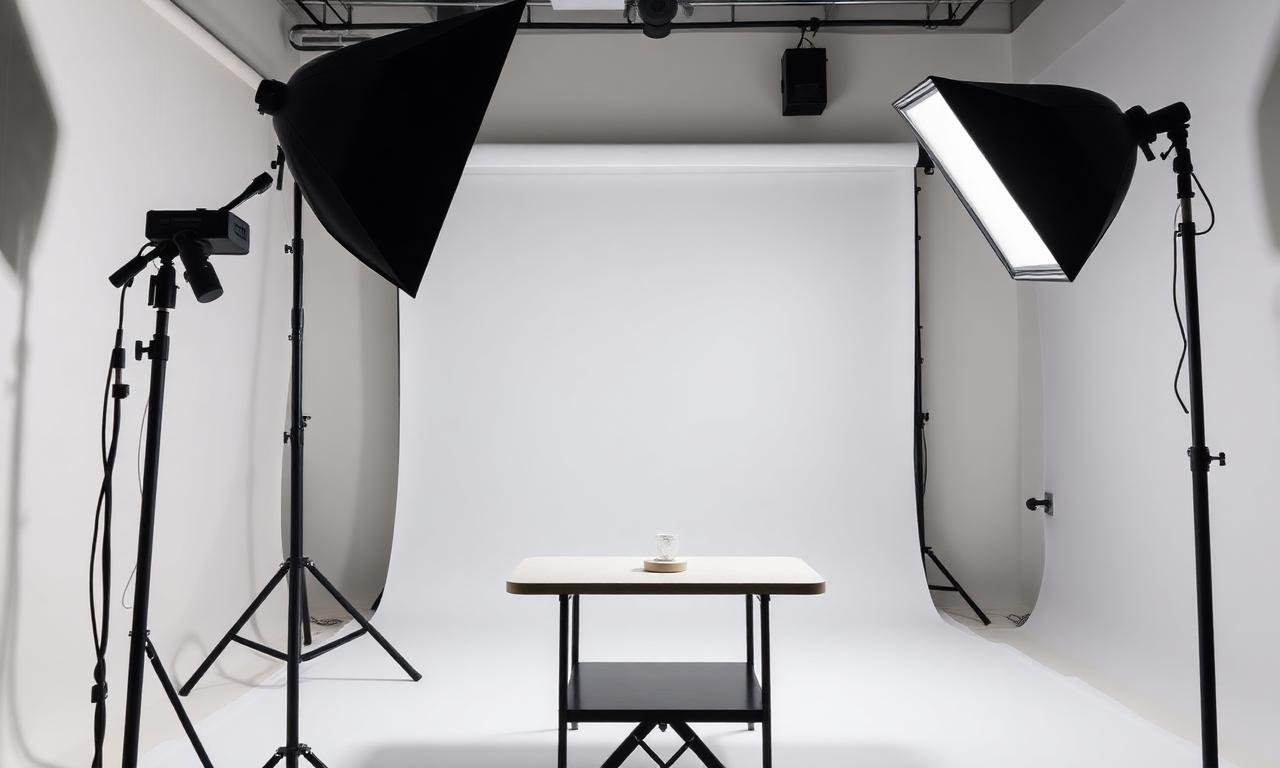
If you shoot on a contrasting surface (dark wood, gray paper, even your kitchen counter), the AI cutout will be cleaner than if you shoot directly on a near-white background — the segmentation model needs contrast to find the product edge. Counter-intuitive, but consistent across every test.
Step 2 — Remove the background with AI
Drop your product photo into MagicBG. The AI returns a transparent PNG in two to four seconds. Everything runs in your browser via WebGPU — no upload, no signup, no watermark. For tricky cases (glossy bottles, transparent packaging, fine fur), see our deep dive on how AI background removal actually works to understand which photo conditions the model handles best.
Step 3 — Add the pure white background
Open the transparent PNG in any free editor:
- Photopea — Photoshop in a browser tab, free.
- Canva — drag a PNG onto a #FFFFFF background, export.
- Apple Preview on Mac — File → New from Clipboard with white fill.
Create a new layer below the product. Fill it with white using the exact hex value #FFFFFF (do not eyeball it — use the color picker). Position the product to fill at least 85% of the frame horizontally or vertically, whichever is longer. Export as JPG with quality 90+ at 2000px or larger on the long edge.
Step 4 — Verify before uploading
Open the final image in any editor and use the eyedropper on the background. It should read R: 255, G: 255, B: 255. If it reads 254/255/253 or anything else, your editor probably exported with subtle JPEG compression that drifted the white. Fix: re-export at higher quality, or save as PNG.
Common mistakes that get listings flagged
- Off-white backgrounds. #FAFAFA looks white on your screen; Amazon's vision model knows it isn't.
- Drop shadows on the main image. Allowed on secondary images; forbidden on main.
- Reflections that include props. A perfume bottle reflecting a wood table is technically a prop on the main image.
- White borders or padding. Crop tight; don't add a frame.
- Compressed JPGs with halos around the product. A common artifact of saving too many times. Always re-export from the source PSD/PNG.
- Wrong aspect ratio. Amazon prefers square (1:1) for the main image grid; ultra-wide or ultra-tall waste pixels.
Edge cases by category
Apparel
Amazon allows ghost mannequins and flat lays for apparel main images, but a real model is preferred for conversion. If you use a model, the model still must appear on a pure white background. Skin-tone halos around hair are the #1 reason apparel listings get flagged — see fixing jagged edges after background removal for the cleanup steps.
Jewelry & small accessories
You're allowed to shoot on a small block or stand to display the item, as long as the prop is removed in post — which an AI background remover handles in one pass. For very reflective items (gold, mirror finishes), a second pass with a light "defringe" filter is usually required.
Glass, transparent packaging, liquids
The hardest category. AI segmentation models still struggle with truly transparent objects because the background literally shows through them. Shoot against a slightly darker, evenly lit gradient, then manually clean up the edges in Photopea using a layer mask. Allow ten minutes per image.
Secondary images: where you actually win
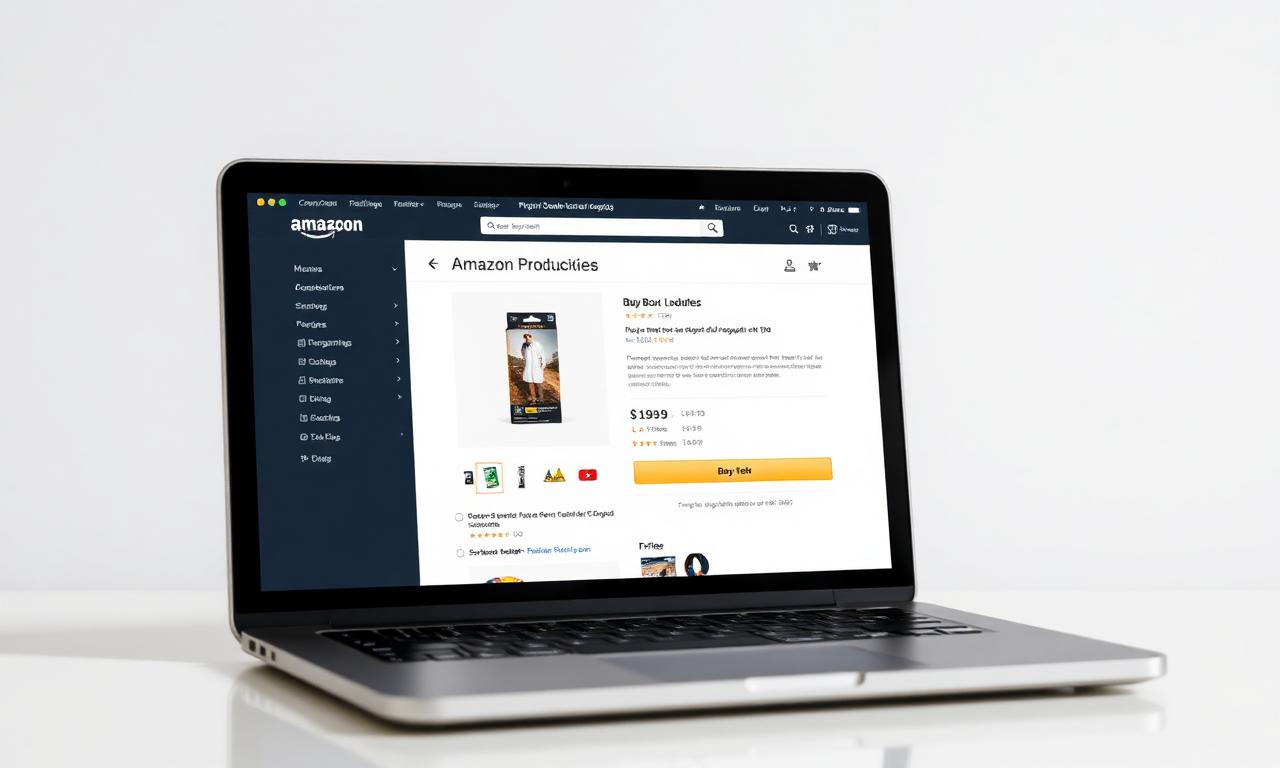
Most sellers obsess over the main image and waste slots 2-9. Don't. The secondary slots are where you handle objections, demonstrate scale, show lifestyle context, and prove differentiation. A few formats that consistently lift conversion rate:
- Lifestyle shot: the product in real-world use, with people if relevant.
- Infographic: 3-5 key benefits with icons and short text.
- Comparison chart: your product vs. competitors (use generic "Brand A/B/C" labels to stay compliant).
- Scale reference: the product next to a hand or a familiar object.
- What's in the box: all components laid out flat.
For these, the same AI background remover is invaluable: cut out the product cleanly, then drop it into any background you want. You're not bound by the white-background rule outside slot 1.
Scaling to a full catalog
If you sell 50+ SKUs, manual processing becomes a bottleneck. Two approaches that work at scale:
- iOS Shortcuts using the built-in Remove Background from Image action. See our iPhone background removal guide for the exact shortcut recipe.
- Browser tabs: open multiple tabs of MagicBG, drag a folder of photos, download all PNGs, then batch-composite onto white in Photopea using a small script.
Final export format
For Amazon main images, JPG at quality 90, sRGB color space, 2000px+ on the long edge. PNG is allowed but JPG ranks identically and is much smaller. Avoid WebP for Amazon uploads — it's accepted in some regions but inconsistent across category teams. For your own website you should absolutely prefer WebP; we explain why in PNG vs WebP for transparent images.
Try it now
Process your next listing on the MagicBG home page. It's free, runs in your browser, and never uploads your product photos to a server. Pair it with Photopea or Canva for the white-background composite, and your listings will be fully compliant before lunch.