
May 9, 2026 · 11 min read
Remove Background on iPhone Without Apps (Free 2026 Guide)
How to remove background on iPhone in seconds — no app, no subscription. Works on iPhone 11+ with iOS 17 and free AI alternatives for older models.
Method 2 Browser-based AI (recommended for quality)
This guide walks through every reliable method available on iOS 18+ in 2026, when to use each one, and how to push image quality further than the built-in tool when you need it for product photos, YouTube thumbnails, marketplace listings, or anything you'll actually publish.
Why your iPhone is enough in 2026
The dedicated background-remover app industry exploded between 2018 and 2022. Most of those apps now look obsolete next to two free tools: Apple's on-device segmentation model, and browser-based AI running through WebGPU. Both produce results that — for the average user — are indistinguishable from what a Photoshop subscription would give you. The difference is workflow, resolution, and control.
Apple's lift-subject feature is powered by an on-device neural network introduced with the A12 Bionic chip and refined every year since. By the iPhone 17 generation, segmentation runs in roughly 80 milliseconds on a single photo and handles fine details like hair, fur, and even glass with surprising accuracy. You can read the public technical write-up on the Apple Machine Learning Research site for the underlying model details.
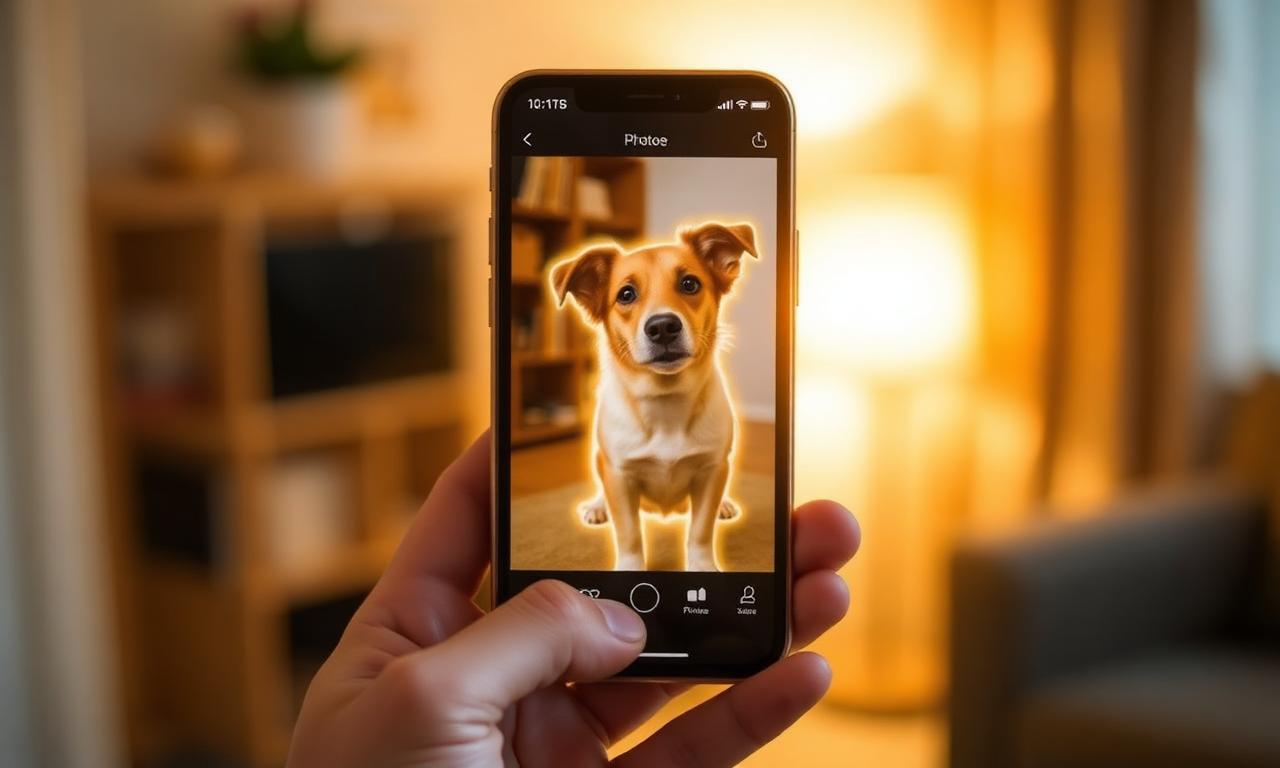
Method 1 — Built-in iOS subject lift
The fastest way to remove a background on iPhone, by a wide margin, is the built-in lift tool. Here's the exact gesture:
- Open the photo in Photos (works in Files and Quick Look too).
- Touch and hold directly on the subject until you see a glowing animated outline.
- Lift your finger slightly without releasing — the subject "pops" out.
- Tap Copy, Share, or Add Sticker.
Pasting into Messages, Mail, Notes, Pages, or Keynote produces a transparent PNG sized to the original photo's resolution. This works completely offline, costs nothing, and respects your privacy — no upload ever leaves the device.
What iOS lift is great at
- People, pets, and food shot against any reasonably contrasting background.
- Portrait Mode photos, because the depth map gives the model a head start.
- Quick stickers for chats and presentations.
Where iOS lift falls short
- You can't easily save the cutout as a standalone PNG file (you have to paste it into Files first).
- Resolution is capped at the original photo's pixel count — no upscaling.
- Batch processing is impossible; each photo requires a manual gesture.
- Low-light, motion-blurred, or busy-background photos still trip up the model.
Method 2 Browser-based AI (recommended for quality)
When you need full-resolution exports, batch processing, or a downloadable PNG file, the cleanest 2026 workflow is a browser tool that runs the segmentation model locally on your phone. Open Safari and load MagicBG. Drop a photo straight from your camera roll, wait two to four seconds, and tap to download the transparent PNG. Nothing uploads to a server — the model runs on your iPhone's GPU through WebGPU. You can verify the technology is real by reading MDN's WebGPU documentation or Google's WebGPU compute primer.
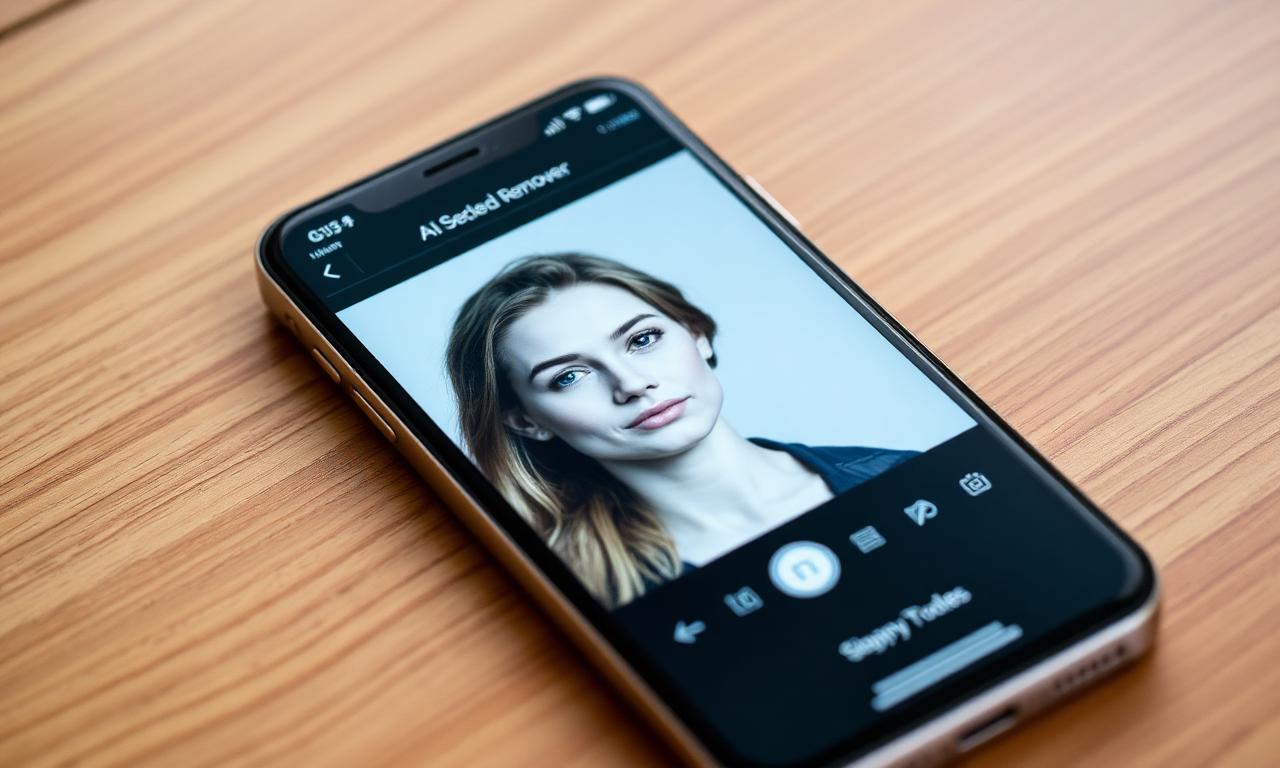
Why use a browser tool over an app?
- No install: nothing to vet, no permissions to grant, no storage cost.
- Higher-resolution exports than iOS lift in many cases.
- Cross-device: the same URL works on your iPad and Mac later.
- No subscriptions: the AI model is free because there's no server to pay for.
Method 3 — The Shortcuts app for batches
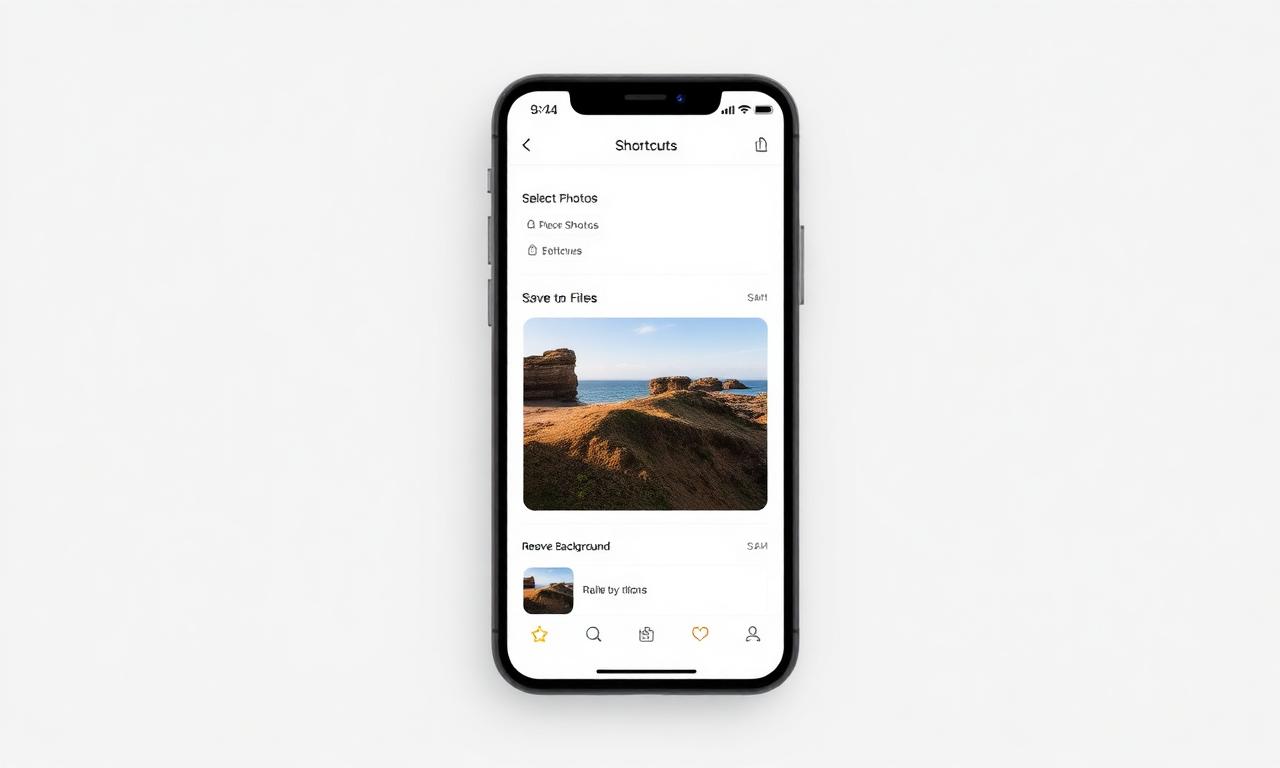
If you regularly need to process dozens of photos at once — say, for an Etsy or eBay store — Apple's Shortcuts app exposes the lift-subject feature as an action. Build a quick shortcut:
- Open Shortcuts → New Shortcut.
- Add action: Select Photos (enable "Select Multiple").
- Add action: Remove Background from Image (the system action, available in iOS 17+).
- Add action: Save to Photos Album (or to a Files folder).
Run it once and pick 50 photos; ten seconds later you have 50 transparent PNGs. The official syntax for this action is documented in Apple's Shortcuts user guide.
Whichever method you pick, the source photo has roughly 80% of the impact on quality. The AI is doing the same work in every tool — it's just being fed different inputs. Five small habits dramatically improve results:
- Wipe the lens. A smudge of finger oil softens edges and confuses the matting model.
- Use Portrait mode. The depth data dramatically improves hair and fabric edges.
- Avoid mirrors and glass. They confuse segmentation almost every time.
- Get contrast. A red sweater on a red couch is asking for trouble.
- Shoot at the highest resolution your camera supports (24 MP on iPhone 15 Pro and later).
When to use which method
- iOS lift: stickers, quick chats, one-off Notes and Pages graphics.
- Browser AI: product photos, YouTube thumbnails, anything you'll publish.
- Shortcuts batch: recurring marketplace work or content production at scale.
The deeper question — why these tools became free in 2026 in the first place — has a fascinating answer that we explore in How AI Background Removal Actually Works. Short version: better neural networks, smaller models, faster phones.
Post-processing: making the cutout publication-ready
Once you have a transparent PNG, you usually need one more step before publishing: composing it onto a chosen background. For Amazon listings, that means a pure white background — see our dedicated guide on pure white backgrounds for Amazon listings. For YouTube thumbnails, a bold solid color or gradient — covered in background removal for YouTube thumbnails.
Free editors that handle this comfortably on iOS:
- Canva — drag a PNG onto a colored background in seconds.
- Photopea — full Photoshop-style control in a Safari tab.
- Pixelmator Photo or Affinity Photo 2 if you prefer a native app.
PNG vs HEIC vs WebP: which to export?
iPhones default to HEIC for storage but most websites still want PNG or WebP for transparent images. The short rule: PNG for marketplace uploads (Amazon, Etsy, eBay) and print, WebP for your own website and social media. We compare them in detail in PNG vs WebP for Transparent Images.
A note on privacy
Many older "background remover" apps upload your photos to a remote server, which is a quiet privacy problem most users never think about. The two methods recommended above — iOS lift and browser AI via WebGPU — both run entirely on your device. Nothing leaves your phone. If you're processing personal photos, ID documents, or anything sensitive, that distinction matters.
Get started
Open the MagicBG home page in Safari on your iPhone and try it on your latest camera roll photo. The first run downloads a small model (around 40 MB) and caches it; every cutout after that is instant.