
June 12, 2026 · 12 min read
How to Remove Background for Vinted, Depop & Poshmark Listings (2026)
Sell faster on Vinted, Depop, Poshmark, and eBay with clean product photos. Learn how to remove the background from resale listings free with AI — no app, no watermark.
Second-hand fashion is no longer a niche — it's one of the fastest-growing corners of e-commerce. Resale apps like Vinted, Depop, Poshmark, and eBay have turned millions of closets into storefronts, and the sellers who win are not always the ones with the rarest items. They're the ones whose photos look clean, consistent, and trustworthy. The single highest-leverage edit you can make to a resale photo is removing the distracting background, and in 2026 you can do it free in a few seconds. This guide explains exactly why it matters, how to do it on any device, and how to build a photo workflow that makes your whole shop look professional.
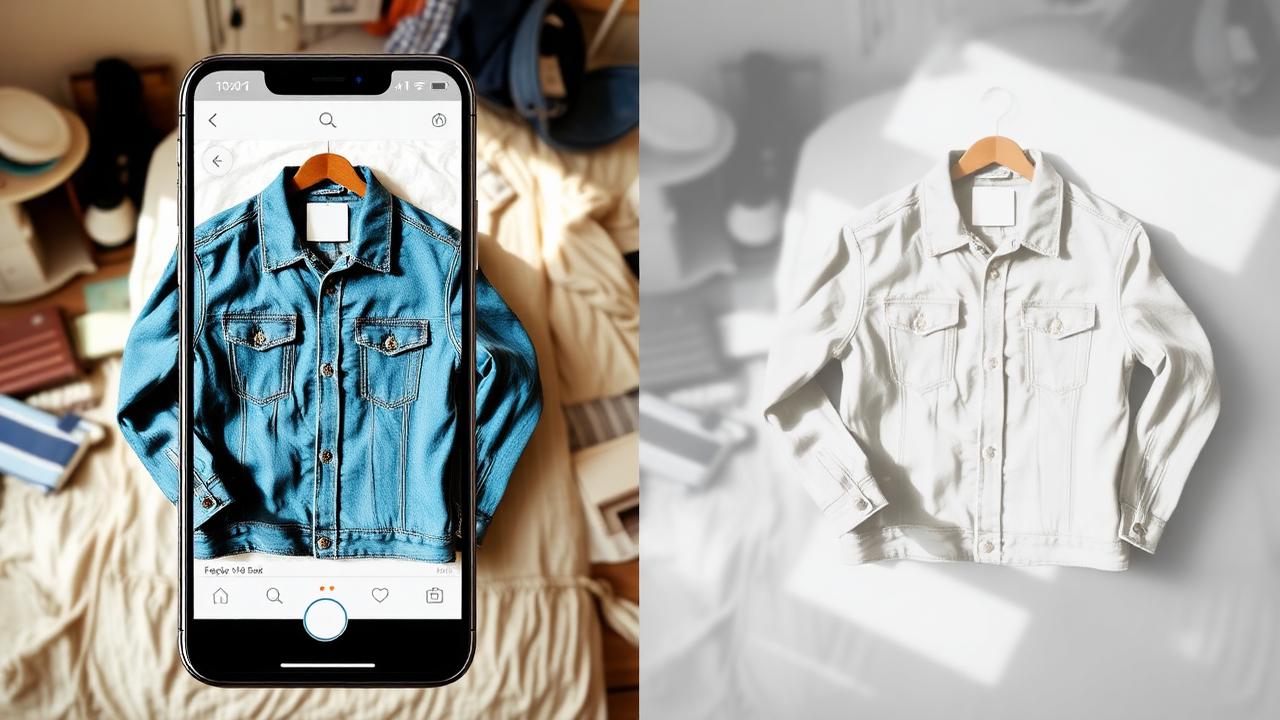
Why background removal sells more on resale apps
Resale marketplaces are infinite scroll machines. A buyer flicking through a category sees dozens of thumbnails per screen, and the brain makes a tap-or-skip decision in a fraction of a second. A messy background — an unmade bed, a carpet, a half-open wardrobe — adds visual noise that competes with the product. A clean, neutral background does the opposite: it isolates the item, signals effort, and makes your listing feel like a real shop rather than a quick snapshot.
There's also a trust dimension. Buyers on resale platforms can't touch the item, so they read everything into the photo. Sellers who present items on a clean backdrop are perceived as more careful, which spills over into how buyers judge the condition of the item itself. Cleaner photos correlate with faster sales and fewer lowball offers — not because the clothes changed, but because the presentation removed doubt.
Finally, consistency compounds. When every listing in your shop uses the same clean background, your profile page reads as a coherent brand. That visual rhythm is exactly what top Depop and Poshmark sellers use to look established, and it's free to copy.
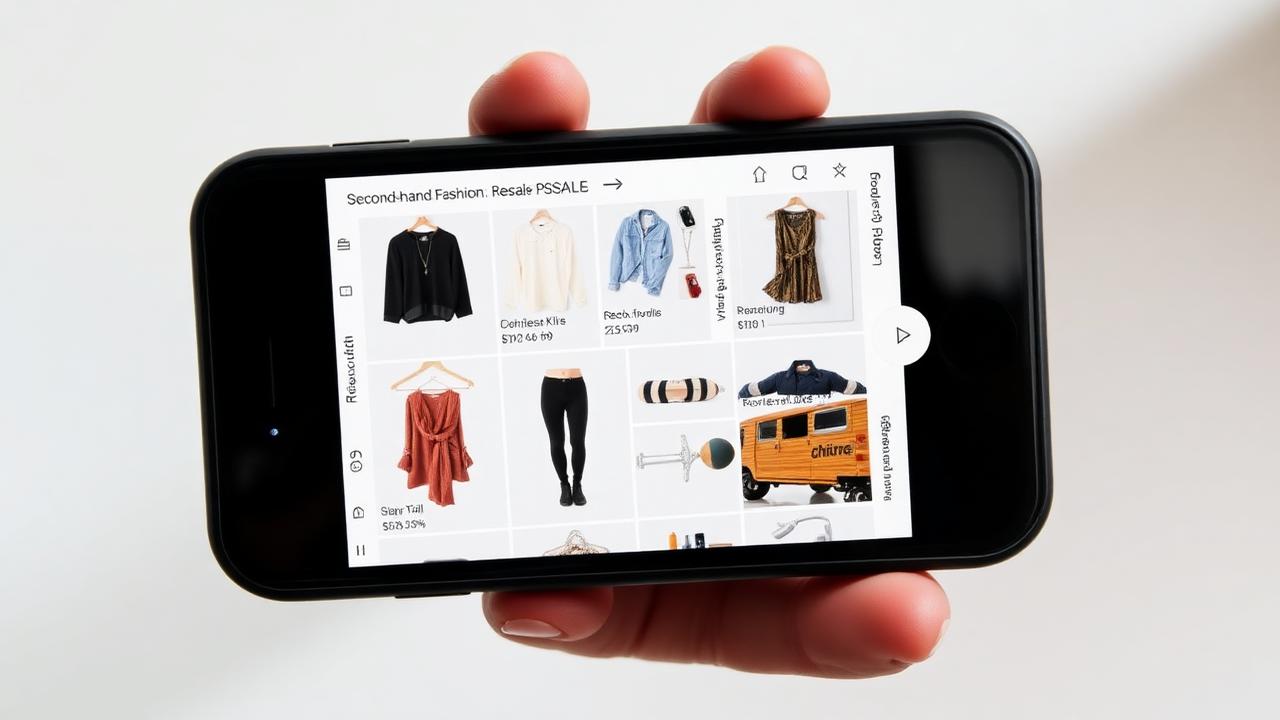
The fast way: remove the background in your browser
You don't need Photoshop, a subscription app, or a lightbox to get a clean product photo. The quickest route in 2026 is a browser-based AI remover that runs on your phone or laptop. Here's the full workflow:
- Open the tool. Go to the MagicBG background remover in any browser — no app install, no signup.
- Upload your photo. Drag in the image or pick it from your camera roll. The AI isolates the item from the background automatically.
- Download the transparent PNG. In a few seconds you get a clean cutout with the background gone and no watermark.
- Add a backdrop (optional). Place the cutout on a solid white or soft neutral color so every listing matches.
Because the processing happens on your device, your photos never get uploaded to a server — a nice bonus when you're photographing items in your home. If you've never done this before, our step-by-step guide to removing a background from any picture walks through the same flow with screenshots.
What each resale platform wants from a photo
Each marketplace has slightly different expectations. Removing the background helps on all of them, but knowing the specifics lets you optimize the final image.
Vinted
Vinted favors bright, true-to-life photos and rewards listings that look honest. A clean white or light neutral background makes colors read accurately, which reduces the "it looked different in the photo" complaints that lead to returns and disputes. Vinted's feed is square-cropped, so center your cutout and leave a little breathing room on all sides.
Depop
Depop is the most aesthetic-driven of the major platforms — it grew up alongside Instagram, and its top sellers treat their grids like a feed. Many use a consistent off-white or pastel background across every listing. A transparent PNG cutout makes this trivial: drop the same backdrop behind every item and your profile instantly looks curated. Depop also displays images as squares, so plan for a 1:1 crop.
Poshmark
Poshmark leans toward a clean, catalog-style look, and the cover shot is everything because it's what shows in search and in shares. A pure white background here mimics retail product photography and helps your item look new-with-tags even when it isn't. Poshmark also uses square covers.
eBay
eBay actively rewards plain backgrounds — its own listing guidelines recommend a white or neutral backdrop, and a clean main image is required for many categories to appear in the best search positions. You can read eBay's official advice in its picture requirements documentation. Removing the background and placing the item on white is the single easiest way to meet that standard.
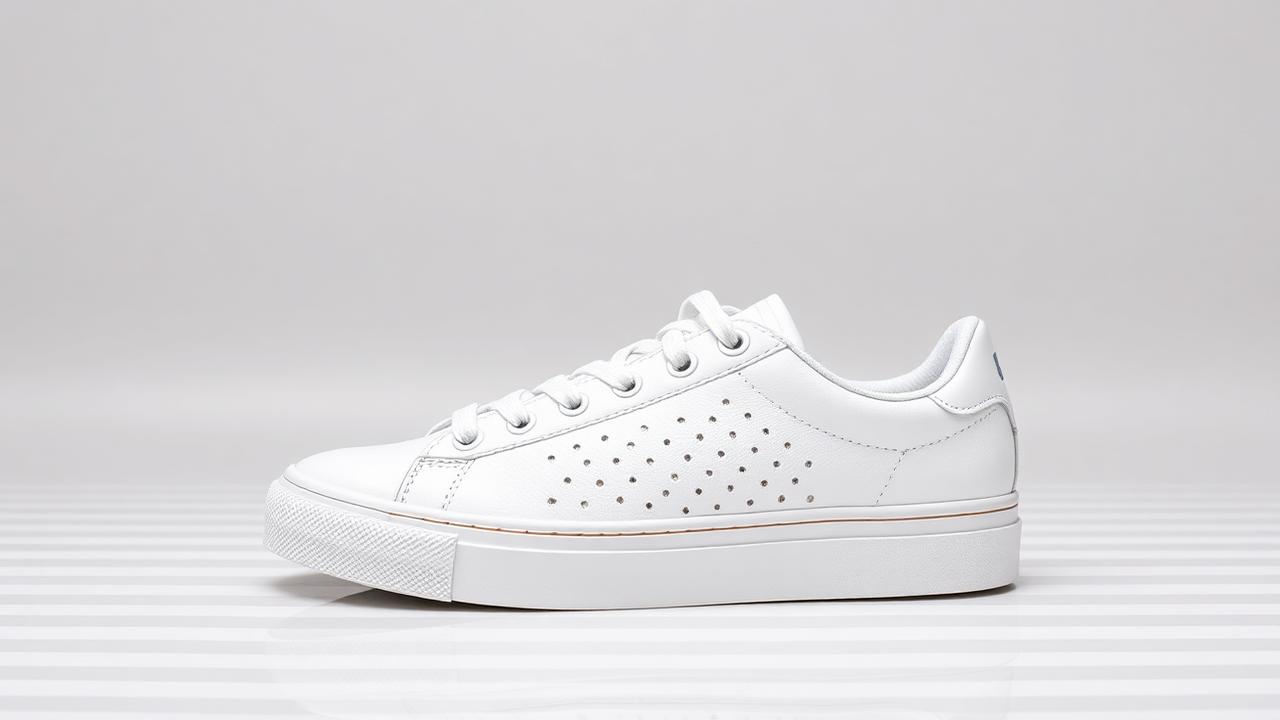
Shoot a photo the AI can cut perfectly
AI background removal is excellent, but it works best when you give it a clean input. A few habits at the photography stage make the difference between a flawless cutout and one you have to touch up:
- Use daylight. Shoot near a window during the day. Soft, even natural light avoids harsh shadows that the AI can mistake for part of the item.
- Create contrast. Put dark items on a light surface and light items on a darker one. The bigger the difference between item and background, the cleaner the edge.
- Avoid busy surfaces. A plain bedsheet, a wall, or a sheet of poster board beats a patterned rug. Patterns near the item's edge are the main cause of rough cutouts.
- Fill the frame. Get close enough that the item dominates the shot. More detail means a sharper edge and a higher-resolution final PNG.
- Hold steady. A blurry photo blurs the edge between item and background. Steady the phone against something or use a 2-second timer.
For clothing, lay items flat and smooth out wrinkles, or hang them on a slim hanger against a wall. Flat lays are the most forgiving for AI removal because the item sits on a single, even surface.
Handling tricky items: lace, straps, and shiny surfaces
Some resale items are harder to cut than others. Lace, mesh, thin straps, jewelry chains, and reflective materials like patent leather or metal can challenge any tool. Modern segmentation models handle these far better than the manual lasso ever did, but a couple of tricks help:
- For fine details (lace, chains): shoot against the most contrasting background you can so the AI can find every gap. Then zoom to 100% and check the edges before you publish.
- For shiny items: diffuse your light to reduce hot spots and reflections, which can confuse where the item ends.
- For transparent items (glassware, sunglasses): place them on a clearly different color so the background showing through is obvious to the model.
If you do see a jagged or fringed edge after removal, it's usually fixable in seconds. Our guide on fixing jagged edges after background removal covers the cleanup steps so your final cutout looks crisp.
White background or transparent PNG?
Once you've removed the background you have two good options, and the right one depends on the platform. A transparent PNG is the flexible master file: it has no background at all, so you can drop it onto white for eBay, a pastel for Depop, or a branded color for a cover image — all from one export. A solid white background is the safe, universal choice for the actual listing because it looks like retail product photography and never clashes with the app's own UI.
The pro move is to keep the transparent PNG as your source and generate whatever colored version each platform needs from it. That way you never re-shoot, and your whole catalog stays consistent. If you want a deeper look at the format itself, see our explainer on making a free transparent PNG, and for web speed considerations compare PNG vs WebP for transparent images.
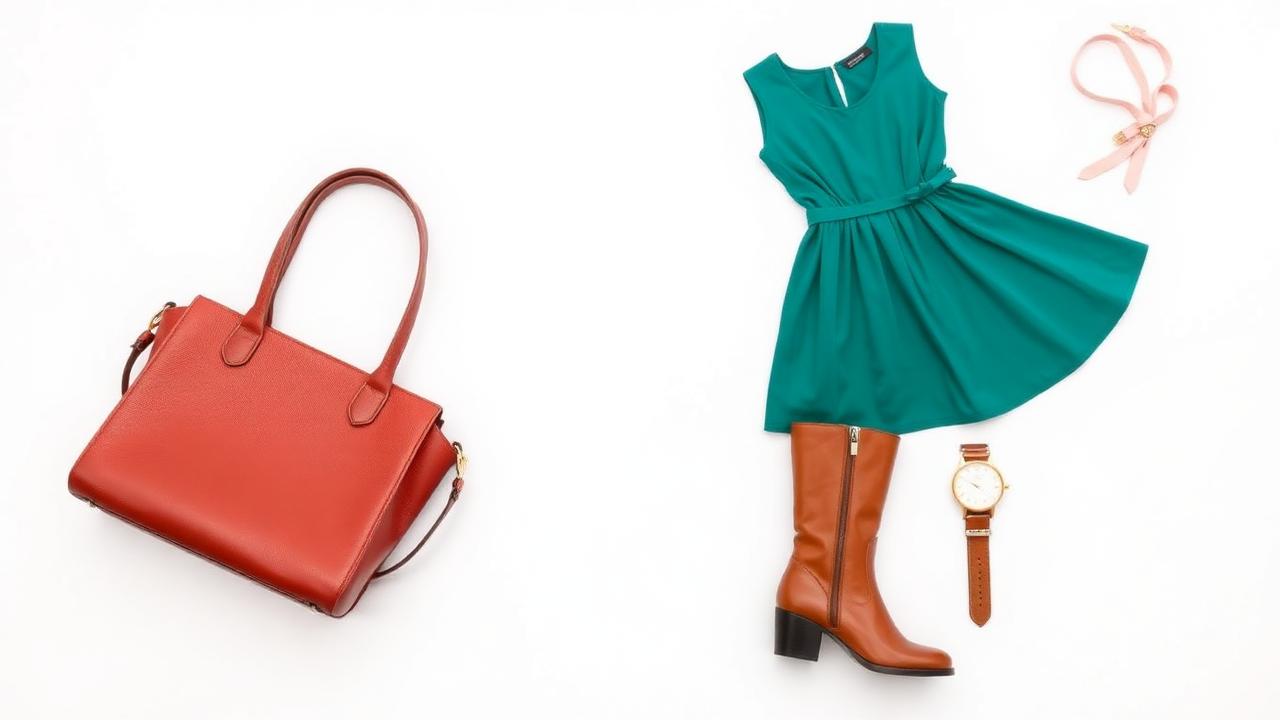
A batch workflow for big closet clean-outs
If you're listing a whole closet, doing photos one at a time is exhausting. Build a small production line instead:
- Shoot everything first. Set up your light and surface once, then photograph every item back to back. Don't edit between shots.
- Remove backgrounds in a session. Run each photo through the remover in one sitting. Because it's instant and free, you can clear dozens of items quickly.
- Apply one backdrop. Pick a single background color for your whole shop and use it on every cutout for that signature consistent grid.
- Name and stage files. Save exports with the item name so listing them later is fast.
Batching turns the boring part of reselling into a 30-minute task and gives you a library of clean, ready photos you can list whenever you have a spare moment.
Common mistakes that cost you sales
- Over-cropping the item. Cutting off a sleeve or strap makes the listing look careless. Leave margin around the cutout.
- Mixing backgrounds. Some white, some carpet, some bathroom mirror — inconsistency makes a shop look thrown together. Pick one and stick to it.
- Removing the background but keeping bad lighting. A clean cutout of a dim, yellow-tinted photo still looks dim. Fix the light at the source.
- Hiding flaws. Use clean backgrounds to present the item honestly, then add separate close-ups of any wear. Buyers reward transparency with better reviews.
- Forgetting the cover shot. Your first image is the one that sells. Make it the cleanest cutout you have.
FAQ
Is it against the rules to remove the background on resale apps?
No. Removing the background to present an item clearly is standard and encouraged — platforms like eBay actively recommend plain backgrounds. What's not allowed is editing the item itself to hide damage or misrepresent it, so always add honest close-ups of any flaws.
Do I need to pay for an app to get clean product photos?
No. MagicBG removes backgrounds free in your browser with no watermark, signup, or daily limit, so you can list an entire closet without spending anything.
Can I do all of this on my phone?
Yes. The whole workflow — shoot, remove the background, add a backdrop, and upload — works in your phone's browser, so you never have to move files to a computer.
Bottom line
On resale apps, the photo is the product until the buyer holds it. A clean background is the cheapest, fastest upgrade you can make: it sharpens your thumbnails, builds trust, and gives your shop a consistent, professional look that sells faster. In 2026 it takes one upload and a few seconds — free, no app, no watermark. Open the MagicBG home page, drop in your first item, and start building a shop that looks the part.