
May 27, 2026 · 9 min read · By MagicBG Team
Last updated: September 24, 2026
How to Remove the Background from a Logo: Free AI Guide
Get a clean transparent PNG of your logo in under a minute — free, no signup, no watermark. Works for fine text, gradients, and complex marks.
To remove the background from a logo, start from the original vector file if you have one and simply delete the background layer; if you only have a JPG or PNG, run it through an AI background remover and export a transparent PNG. This guide covers both routes, the tricky logo cases (thin strokes, gradients, drop shadows, color-on-color), and which format to deliver to each tool.
Three routes to a transparent logo (and which one to pick)
There are exactly three ways to get a transparent-background version of a logo in 2026. Which one you pick depends on what source file you have and how much you trust the result.
1. You have the original vector file (SVG, AI, EPS, PDF)
This is the dream scenario. Open the file in any vector editor — Figma, Inkscape (free, open-source), Adobe Illustrator, or even Photopea — delete the background layer if there is one, and export as SVG for web use or as PNG at the size you need. The result is mathematically perfect: infinitely scalable, zero anti-aliasing artifacts, no edge fringing. If your designer or agency delivered a vector file in your brand handover, always start here.
2. You only have a raster file (JPG, PNG, screenshot)
This is the common scenario for small businesses, founders, and marketers. The original vector got lost in a Dropbox migration five years ago, the agency that designed it went out of business, or the logo was made on Fiverr in 2019 and never delivered as SVG. All you have is a JPG someone pasted into Google Drive. This is exactly what AI background removers were built for. Drop the JPG into MagicBG, wait a few seconds, and you get back a transparent PNG that follows the silhouette of your mark (see how AI background removal works).
3. You only have a photo of the logo (on a t-shirt, sign, business card)
The hardest case, but still very solvable in 2026. The AI will treat the logo as the subject as long as it stands out from the photo background. The result usually needs one minute of cleanup in Photopea to remove the fabric texture or the lighting gradient. For internal use, the raw output is often good enough. For external use, plan to eventually redraw the mark as a true vector — the photo route is a stopgap, not a long-term solution.
The step-by-step recipe (raster logo → transparent PNG)
Whether you are working from a JPG, a PNG with a white background, or a screenshot, the recipe is identical and takes about thirty seconds.
- Step 1. Open MagicBG in any modern browser (Chrome, Edge, Safari, Firefox, Arc, Brave).
- Step 2. Drag your logo file onto the drop zone, or click to pick it from your computer.
- Step 3. Wait two to five seconds while the AI model runs locally in your browser. The first run downloads the model (about 44 MB); subsequent runs use the cached files.
- Step 4. Inspect the preview against the checkerboard pattern. Pan and zoom to check thin strokes, text, and small details.
- Step 5. Click Download PNG to save the transparent cutout as a PNG (the free tool exports up to 1024 px on the longest side; larger files are part of MagicBG Pro).
- Step 6. Rename the file to something useful like
brandname-logo-transparent.pngand add it to your brand asset folder.
That is the entire workflow. The file you get back is a true 32-bit PNG with a real alpha channel — not a white background pretending to be transparent. You can verify this by dropping the file onto any colored background; a real transparent PNG blends in immediately, while a fake one shows a white halo.
Tricky logo cases and how to handle them
The 2026 generation of segmentation models is dramatically better than what was available even eighteen months ago, but a handful of logo styles still need special handling.
Logos with very thin strokes or fine text
Thin hairline strokes (under 2 pixels at the source resolution) sometimes get treated as background noise and partially erased. The fix is to upload the largest version of the logo you have. If your source is a 200×200 favicon, upscale to 1000×1000 first using a free upscaler like Upscayl, then run background removal on the upscaled version. The extra resolution gives the AI more pixels to work with on thin features.
Logos on a gradient or photographic background
Logos pulled from website screenshots often sit on a gradient or a hero image, not pure white. The AI handles these fine — gradient detection is one of the things modern models do well. The only edge case is when the logo color is very close to a band of the gradient (a dark blue logo on a navy-to-purple gradient, for example). When that happens, a small portion of the mark may get clipped. The fix is to crop the screenshot tighter around the logo before uploading; less background means less ambiguity.
Logos with drop shadows or glow effects
A built-in drop shadow is technically part of the logo, but most brand teams want it removed so the mark sits naturally on any surface. After background removal, open the PNG in Photopea, use the eraser at 100% hardness, and trace the shadow boundary. Re-export. Plan on about ninety seconds of cleanup per logo. Better: ask whoever owns the brand to redraw the shadow as an Illustrator effect on a clean version of the mark, so the shadow can be turned on and off at will.
Logos that are white-on-white or black-on-black
A pure white logo on a pure white background, or a pure black logo on a pure black background, cannot be separated by any AI — there is no signal to detect. If this is your situation, you need a vector version of the mark, period. The AI cannot create information that does not exist in the source pixels. For everything else (white logo on light gray, black logo on dark gray), the model handles it without trouble.
Logos with photographic textures inside (foil, gradient mesh, marble)
Modern luxury and lifestyle brands often use logos with foil textures, gradient meshes, or marble fills. These come out perfectly because the AI cuts along the outer silhouette and preserves everything inside it untouched. The interior detail stays exactly as it was in the source file.
Which export format to give to which tool
A transparent PNG is the universal default, but knowing which format each platform actually wants will save you headaches downstream.
- Websites and web apps: SVG if you have it, transparent PNG otherwise. Avoid WebP for logos used on partner sites; older email clients and embedded webviews still mis-render it. Our guide on PNG vs WebP for transparent images covers when each format is safe.
- Email signatures: transparent PNG, capped at roughly 200×60 pixels and under 20 KB. Some clients (notably old Outlook) flatten transparency anyway, so test by sending yourself an email rendered against both a light and a dark theme.
- Presentations (Google Slides, PowerPoint, Keynote): transparent PNG. See our companion guide on removing backgrounds for presentations for the full deck workflow.
- Social media avatars: the platform itself will mask your image into a circle, so export a square PNG with the logo centered and around 20% padding on every side.
- Favicons: export your transparent PNG at 512×512, then run it through any favicon generator. The transparent background lets the favicon look correct in both light and dark browser themes.
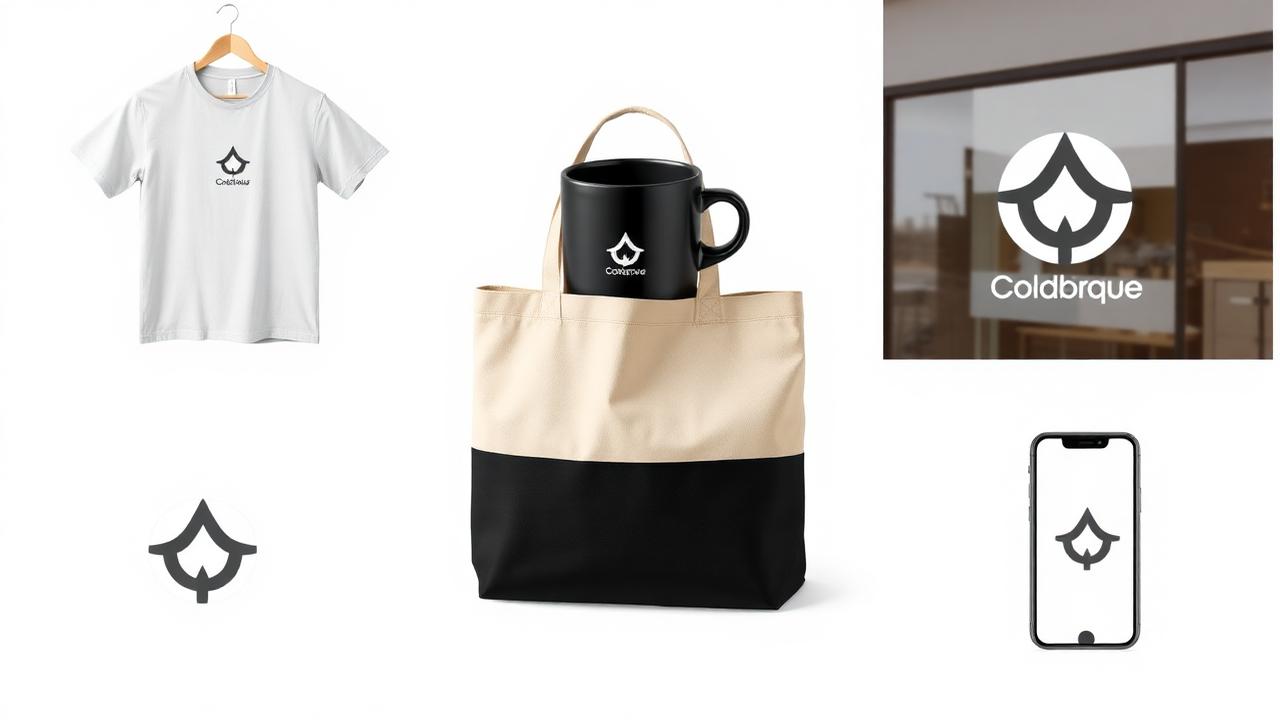
- Merchandise and print: ask your printer whether they want PNG, PDF, or vector. For embroidery, you almost always need a redrawn vector — the cutout PNG is for digital proofing only.
- App icons (iOS, Android): the OS applies its own mask, so submit a square PNG with the logo on a solid brand-color background, not on transparency. The transparent version is for everything except app icon submission.
Ownership and brand rights
Removing the background of a logo does not change anything about its ownership or trademark status. You can only do this for logos you own or are authorized to use. For competitor logos used in comparison tables, “as used by” pages, and editorial coverage, nominative fair use generally applies, but you should check the rules for your jurisdiction. How MagicBG handles your files is explained in our AI policy.
Frequently asked questions
Can I remove the background from a logo for free?
Yes. MagicBG is free, with no signup, no watermark and no daily limit. The free tool exports up to 1024 px on the longest side; larger files are part of MagicBG Pro. Commercial use is included.
Will the AI keep the inside of letters like O, A, and B transparent?
Yes. Modern segmentation models in 2026 correctly handle closed letterforms and other enclosed negative space, leaving the interior transparent so colored backgrounds show through naturally. This was a major weakness of 2020-era removers; it is essentially solved today.
What is the maximum resolution I can process?
Input files up to 15 MB are accepted. Images larger than about 1024 px on the long edge are scaled down before processing and exported at that size. For larger logos, use the original vector file or MagicBG Pro.
Can I get an SVG out of this?
No — AI background removal produces a pixel-based PNG, not a true vector. To get a real SVG, you need either the original vector file or a manual redraw in Illustrator, Figma, or Inkscape. Free online raster-to-vector converters exist but rarely produce production-quality results for logos.
My logo came out with jagged edges. What do I do?
Walk through our short guide on fixing jagged edges after background removal. A 60-second feather-and-defringe pass solves the vast majority of cases. If the jaggies are extreme, your source resolution is too low — re-export or upscale the original first.
Is it safe for unreleased rebrands?
Yes, because the model runs locally in your browser. Nothing is uploaded, nothing is logged, and nothing is stored. Keeping the file on your device avoids sending it to a third-party server, which simplifies internal security review.
Bottom line
A transparent-background logo is the most reused file in any modern brand toolkit. In 2026 you can produce one in thirty seconds, in a browser tab, for free, without uploading anything. Open MagicBG, drop your logo in, click Download PNG, and save the result into your brand asset folder. From there it slots cleanly into pitch decks, LinkedIn pages, Shopify storefronts, and every other surface a 2026 brand needs to show up on — with no white box in sight.
Where this fits in the workflow
Selling this photo on Amazon, Etsy, eBay, Walmart or another marketplace? MagicBG's Complete Listing Generator turns a single product photo into a full marketplace-ready listing — optimized images, title, bullets, description and keywords.