
June 26, 2026 · 11 min read
eBay Product Photos: Win the Sale with Clean Backgrounds (2026)
How to shoot, cut out, and optimize eBay product photos in 2026 so your listings rank higher in search, look trustworthy, and sell faster — using a free background remover.
On eBay, your photo is your storefront. Buyers scroll through a wall of thumbnails, and the listing with the cleanest, brightest main image gets the click — everything else gets ignored. In 2026, eBay's own image standards and its picture guidelines reward sellers who lead with a clear product shot on a plain background. This guide walks through exactly how to get there: how to shoot, how to remove the background for free, and how to optimize each image so your items sell faster and at a better price.
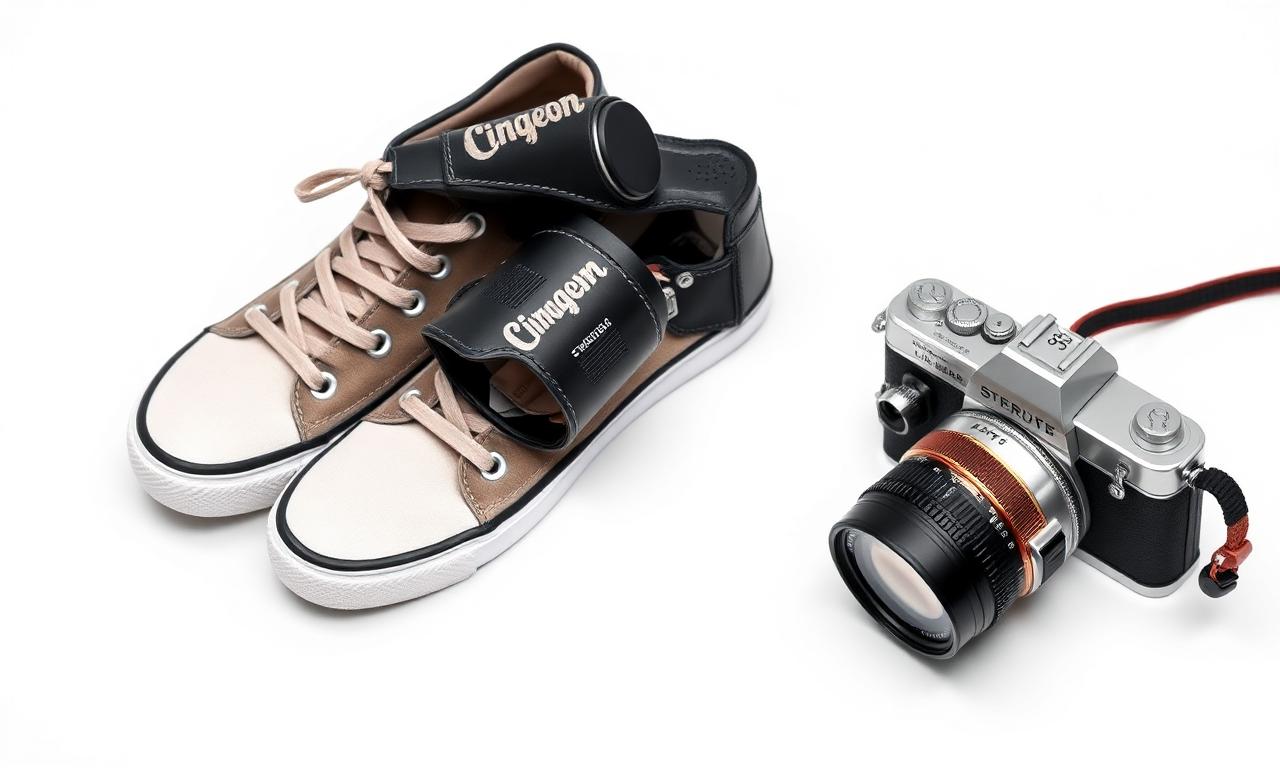
Why backgrounds matter so much on eBay
eBay's search algorithm, Best Match, factors in listing quality and buyer engagement — and nothing drives clicks (or kills them) like the gallery image. A photo with a messy bedroom, a carpet, or a cluttered desk behind your product reads as "casual seller" and lowers perceived value. A clean white or neutral background does three things at once:
- Increases click-through rate — your thumbnail stands out in a crowded grid.
- Raises perceived value — pro photos justify a higher asking price.
- Meets eBay's standards — a plain background is required for the main image in many categories.
eBay actually mandates a clean background for the primary photo in many categories and bans borders, text, and watermarks on it. Removing the background isn't just aesthetic — it keeps your listing compliant.
eBay's photo requirements in 2026 (quick reference)
- Minimum 500 px on the longest side; 1600 px recommended so zoom works.
- Up to 24 photos per listing — free.
- No added borders, text, or watermarks on the main image.
- JPEG or PNG; keep file sizes reasonable so listings load fast on mobile.
- The main image should show the full item, well-lit, on a plain background.
The good news: every one of these is easy to hit with a phone and a free tool. You don't need a studio.
Step 1: Shoot a photo that's easy to cut out
Background removal is dramatically cleaner when the source photo has good contrast and even light. Spend two minutes setting up and you'll save yourself fiddly edits later.
Light it evenly
Shoot near a window during the day, or use a cheap two-light setup. Avoid harsh direct sun, which creates hard shadows that the AI can mistake for part of the product. Soft, diffuse light produces clean edges and accurate colors — and accurate color means fewer "not as described" returns.
Use a contrasting backdrop
Place a dark item on a light surface and a light item on a darker one. A plain wall, a sheet of poster board, or a foam board "sweep" works perfectly. The more your product stands out from what's behind it, the more precisely the AI separates it. This is the same principle that prevents white halos around your cutout.
Fill the frame and shoot straight on
Get close so the product fills most of the frame, and shoot at the item's level rather than down at it. Capture the front, back, sides, label, and any flaws — eBay buyers expect honesty, and detailed photos reduce disputes.
Step 2: Remove the background for free
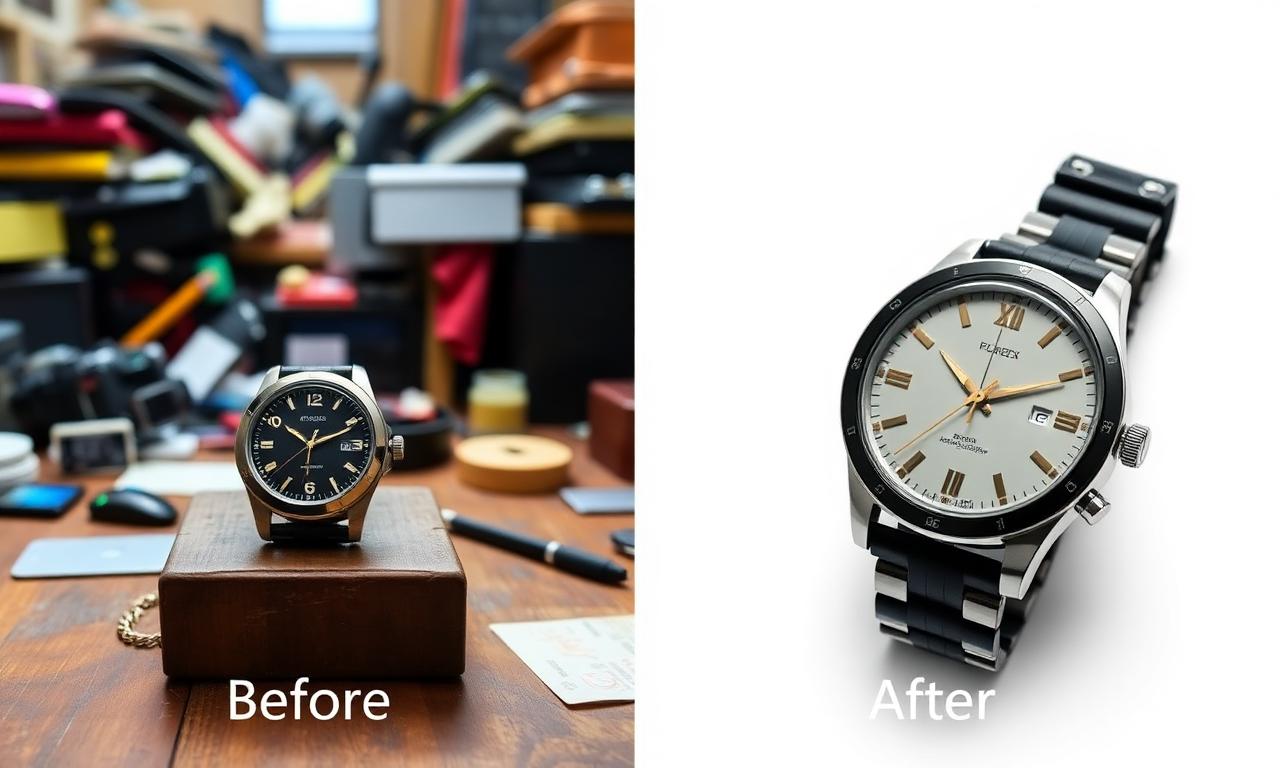
Once you have your shots, removing the background takes seconds. With MagicBG the whole process runs in your browser:
- Open the MagicBG home page on your phone or computer.
- Drop in your product photo — the AI detects the item and erases everything behind it.
- Download a transparent PNG, or switch to a pure white background with one click for the eBay main image.
Because the processing happens on your device, your photos never get uploaded to a server. That's faster (no upload wait), free (no per-image fees), and private — which matters when you're processing dozens of items. If you sell in volume, see our guide to batch removing backgrounds from hundreds of photos.
Step 3: White background vs. transparent PNG — which to use?
For eBay specifically, here's the rule of thumb:
- Main gallery image: use a pure white background. It's clean, compliant, and matches what buyers expect.
- Secondary images: show the item in use, in context, or with detail close-ups — backgrounds can be natural here.
- Keep the transparent PNG as your master. From a transparent cutout you can drop in any background later — white for eBay, a branded color for your own site, or a lifestyle scene.
If you want a deeper comparison of when to keep transparency, read removing white backgrounds and PNG vs WebP.
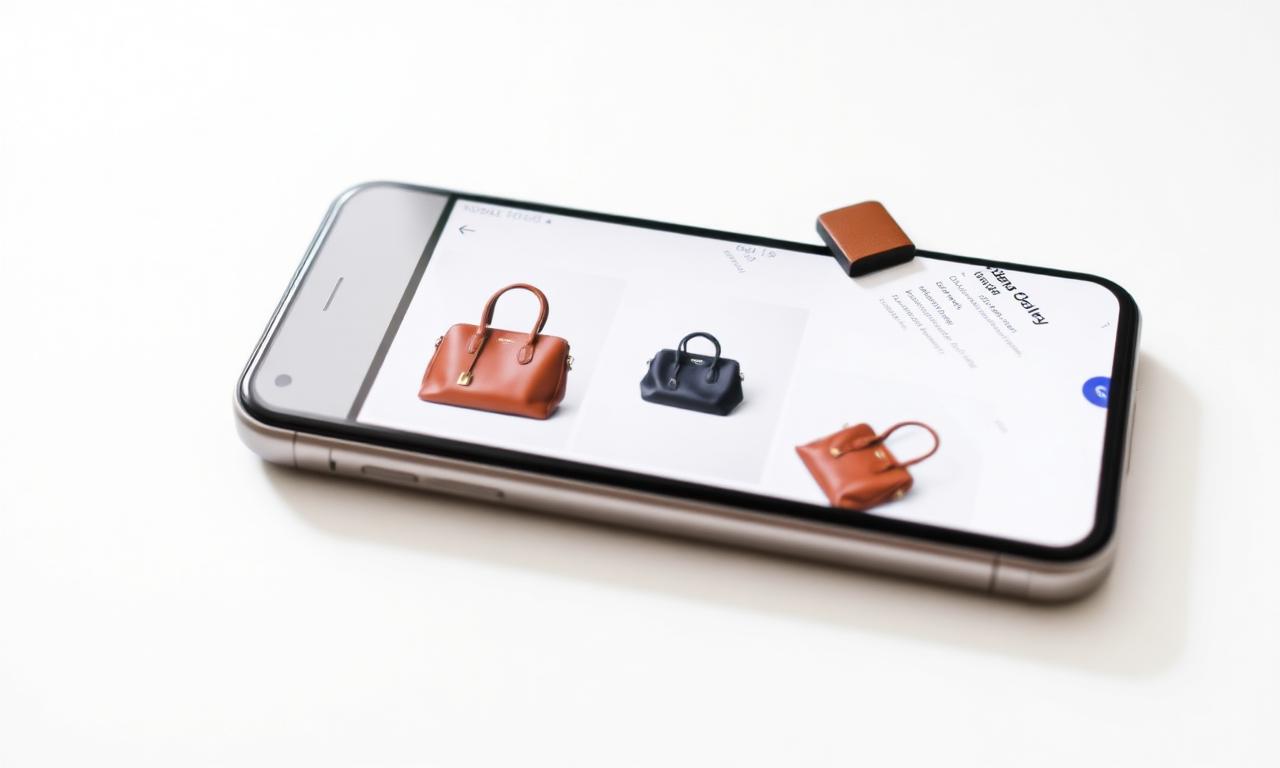
Step 4: Optimize images for eBay search and speed
Size them correctly
Export at 1600 px on the longest side. This is large enough to enable eBay's zoom feature (which boosts buyer confidence) without bloating the file. eBay re-compresses images, so there's no benefit to uploading 5000 px monsters that slow your workflow.
Use a square or near-square crop
eBay displays gallery thumbnails in a square. If your product floats in a tall or wide frame, it shrinks in the thumbnail. After removing the background, center the cutout on a square white canvas so it fills the frame consistently across all photos.
Name and order them with intent
Lead with your strongest, cleanest white-background shot — it becomes the gallery image. Follow with different angles, then details and flaws. A logical order reduces buyer questions and returns.
Step 5: Make your listings look like a real brand
Consistency is what separates hobby sellers from stores buyers trust. When every item is shot the same way, on the same clean background, your listings look like a catalog instead of a yard sale.
- Use the same backdrop, lighting, and crop for every item.
- Place every product on the same pure white for main images.
- Keep the same padding around the product so thumbnails line up in your store.
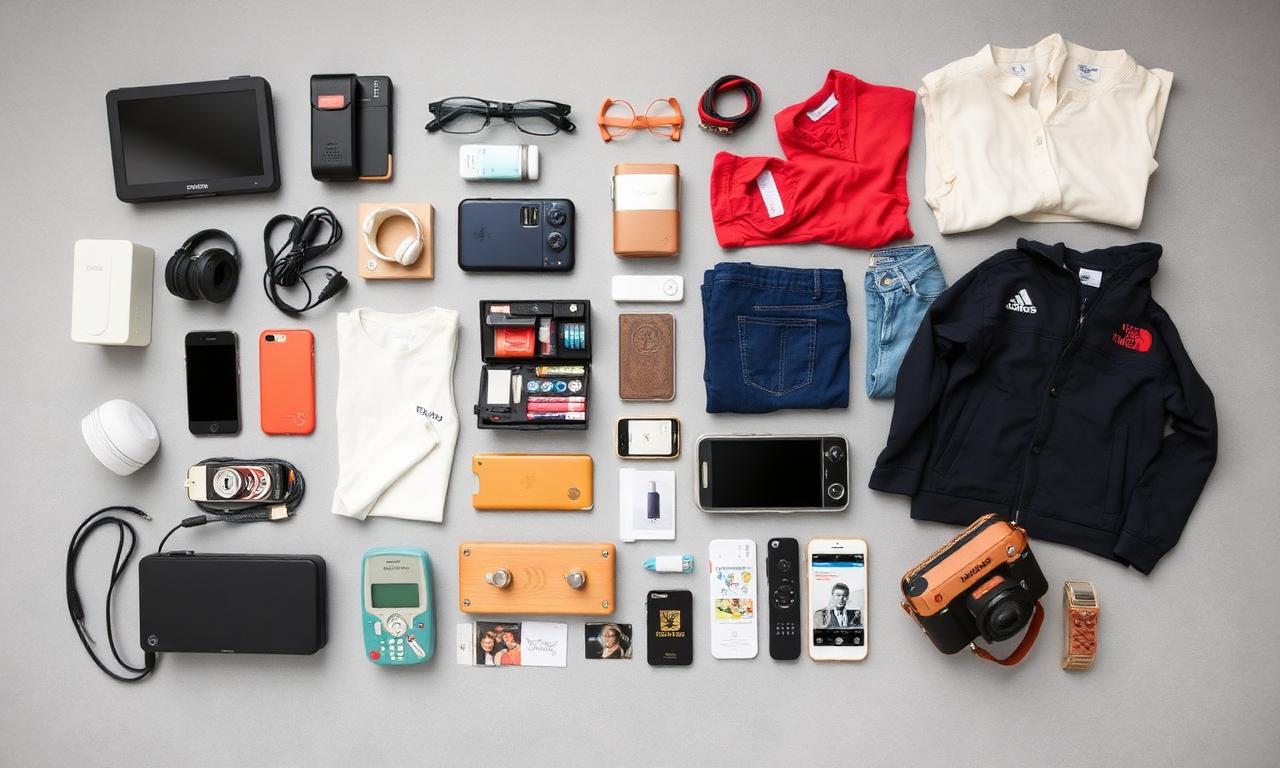
Common eBay photo mistakes to avoid
- Flash glare: on-camera flash blows out detail and creates hotspots. Use soft, ambient light.
- Stock photos as the main image: for used items this violates eBay policy and erodes trust. Always shoot the actual item.
- Cluttered backgrounds: remove them. A messy background makes even a great item look cheap.
- Tiny, dark photos: buyers won't zoom into a blurry thumbnail — they'll scroll past.
- Watermarks on the main image: eBay prohibits them and they look spammy.
Does this work for any category?
Yes. Whether you sell general e-commerce products, electronics, fashion, collectibles, or auto parts, the formula is identical: contrast-friendly shot → background removed → white main image → context shots after. Fashion sellers who also list on Vinted or Depop can reuse the exact same cutouts across every platform.
FAQ
Does eBay require a white background?
For the main image in many categories, eBay requires a clean, plain background and prohibits borders, text, and watermarks. Pure white is the safest, most professional choice and is widely expected by buyers.
Can I remove the background from eBay photos for free?
Yes. MagicBG removes backgrounds for free in your browser with no signup and no per-image fee, then lets you export a transparent PNG or a white-background JPEG ready for eBay.
What size should eBay photos be?
At least 500 px on the longest side, but 1600 px is recommended so buyers can zoom. Crop to square so the item fills the gallery thumbnail.
How many photos should I add?
Use as many as the item needs, up to eBay's 24-photo limit. Show every angle, the label, and any flaws — thorough photos reduce returns and build buyer trust.
Will better photos really sell my items faster?
A clean main image lifts click-through rate, and more clicks plus buyer confidence is exactly what eBay's Best Match rewards. Better photos consistently mean faster sales and stronger prices.
Bottom line
On eBay, the photo wins or loses the sale before the buyer ever reads your title. Shoot with good light and contrast, remove the background, lead with a clean white main image, and keep every listing consistent. Start cutting out your first item free on the MagicBG home page — no uploads, no signup, no per-image fees.