
September 15, 2026 · 12 min read · By MagicBG Team
Shopify Product Photo Optimization: Complete Guide to Better Product Images
Optimize Shopify product photos for quality, consistency and performance: verified size and format limits, cropping, backgrounds, compression and a full workflow.
Two stores can sell the same product at the same price and look completely different. The difference is almost always the photography: one catalog has consistent framing, clean backgrounds and images sharp enough to zoom into, while the other mixes phone snapshots, random crops and files so heavy that the product page crawls on mobile. Shoppers can't touch what you sell, so the image carries the whole job — it has to explain the product, fit the grid, match the rest of the catalog and load quickly.
This guide covers what Shopify actually supports, what is simply good ecommerce practice, and how to turn a raw product photo into a clean, consistent, fast-loading store image. Everything labelled as a Shopify specification comes from the Shopify Help Center and is linked at the end.
Shopify product photo optimization at a glance
The table separates verified Shopify information from practical recommendations. Read the "Source" column before you treat anything as a rule.
| Area | What to check | Source |
|---|---|---|
| Maximum dimensions | Up to 5000 x 5000 px, or 25 megapixels | Shopify specification |
| Maximum file size | Under 20 MB per image | Shopify specification |
| Aspect ratio limits | Between 100:1 and 1:100 for admin uploads | Shopify specification |
| Square images | 2048 x 2048 px "usually displays best" | Shopify recommendation |
| File format | PNG is listed as best for most product images, then JPEG | Shopify recommendation |
| Media per product | Up to 250 images, videos or 3D models | Shopify specification |
| Practical file weight | Keep uploads well under the limit; a few hundred KB to ~2 MB is usually plenty | Best practice |
| Background | Your choice — white, neutral or lifestyle, depending on product and brand | Best practice |
| Consistency | Same ratio, scale, margins and lighting across the catalog | Best practice |
| Mobile check | Review the product page and collection grid on a phone before publishing | Best practice |
Shopify requirements vs best practices
Most confusion around store photography comes from mixing two different things: what the platform technically accepts, and what makes a product image good. Shopify is deliberately permissive — it is a flexible storefront platform, not a marketplace with a compliance team rejecting your photos.
What Shopify specifies
- Product and collection images can be any size up to 5000 x 5000 px, or 25 megapixels.
- Images must be smaller than 20 MB to be added to Shopify.
- Uploads through the admin need an aspect ratio between 100:1 and 1:100, and file names must not begin with a period.
- Accepted file types include PNG, JPEG, WebP, HEIC and GIF, with PSD, TIFF, BMP and SVG also accepted for product media. Animated GIF and WebP are supported.
- Shopify's imagery service detects what the shopper's browser supports and automatically serves the best available format, and generates smaller versions of each image for different theme areas.
- A product can hold up to 250 media items. The first one is the featured media shown on collection, cart, checkout and home pages.
What is simply good practice
- One consistent aspect ratio across the catalog, usually square.
- Similar product scale and margins so items don't jump around in the grid.
- Clean, intentional backgrounds that don't compete with the product.
- Sharp focus on the details a buyer would want to inspect.
- Sensible compression — enough to keep pages light, not so much that texture turns to mush.
- Multiple angles, plus scale and detail shots, rather than one hero image.
None of the second list is enforced by Shopify. All of it affects whether a shopper trusts the product enough to buy it.
What size should Shopify product images be?
Shopify accepts anything up to 5000 x 5000 px (25 MP) and suggests that square images at 2048 x 2048 px usually display best. That recommendation is a good default for most stores: it is large enough for zoom and retina screens, and small enough to stay light after compression.
Shooting and editing at a higher resolution than you publish is still worth it. A larger master gives you room to crop, straighten and re-frame later without softening the product. What you should avoid is uploading the untouched 45 MP export straight from the camera: it is close to the platform ceiling, adds nothing a shopper can see, and makes your media library heavier to manage.
Square, portrait or landscape?
- Square (1:1) — the safest default. It fills collection grids evenly and travels well to marketplaces and social channels.
- Portrait (4:5 or 2:3) — useful for apparel, tall bottles, furniture and anything where height tells the story. It also occupies more vertical space on a phone.
- Landscape — occasionally right for wide products such as rugs, surfboards or desks, but it tends to leave empty bands in square theme grids.
The ratio matters less than committing to one. Whatever you choose, apply it to every product, and never stretch a rectangular photo to fit — add canvas around the product instead so proportions stay true.
If you're standardising an existing catalog, the image resizer and image cropper handle the dimension and framing work without a desktop editor.
Best image format for Shopify product photos
Shopify's Help Center states that the best file type for most product images is PNG, followed by JPEG, and lists WebP, HEIC, GIF, PSD, TIFF, BMP and SVG among other accepted types. Because Shopify's imagery service converts and serves the most suitable format to each shopper automatically, your job is to upload a good-quality source rather than to hand-optimise delivery.
- PNG — lossless, so it holds edges and flat colour cleanly. The natural choice after a background cutout, and Shopify's own first recommendation.
- JPEG — efficient for detailed photographic content such as textiles, wood or food, where lossless encoding buys you little.
- WebP — accepted, and often what Shopify ends up serving to the shopper anyway.
- SVG, PSD, TIFF, BMP, HEIC — accepted, but not the formats to build a product workflow around.
If you're weighing formats more broadly, our comparison of PNG vs WebP for transparent images goes deeper. To move files between formats, use the image converter.
Shopify product image quality and resolution
Resolution is only the starting point. A 2048 px image built from a soft, badly lit source is still a soft, badly lit image — there is no processing step that invents detail that was never captured. Sharp focus, even lighting and accurate colour do more for buyer confidence than any pixel count.
Over-compression is the other failure mode, and it is more common than under-compression. Push a JPEG too far and fabric weave turns blotchy, gradients band, and edges pick up halos — exactly the details a shopper zooms in to check.
A quick quality test before anything goes live:
- Zoom to 100% and look at the texture, stitching, label or finish.
- Check edges for fringing or a visible cutout line.
- Open the product page on an actual phone, not just a narrow browser window.
- Watch how quickly the main image paints on a normal mobile connection.
- Put it side by side with your other products and see whether it looks like the same store.
Should Shopify product photos have a white background?
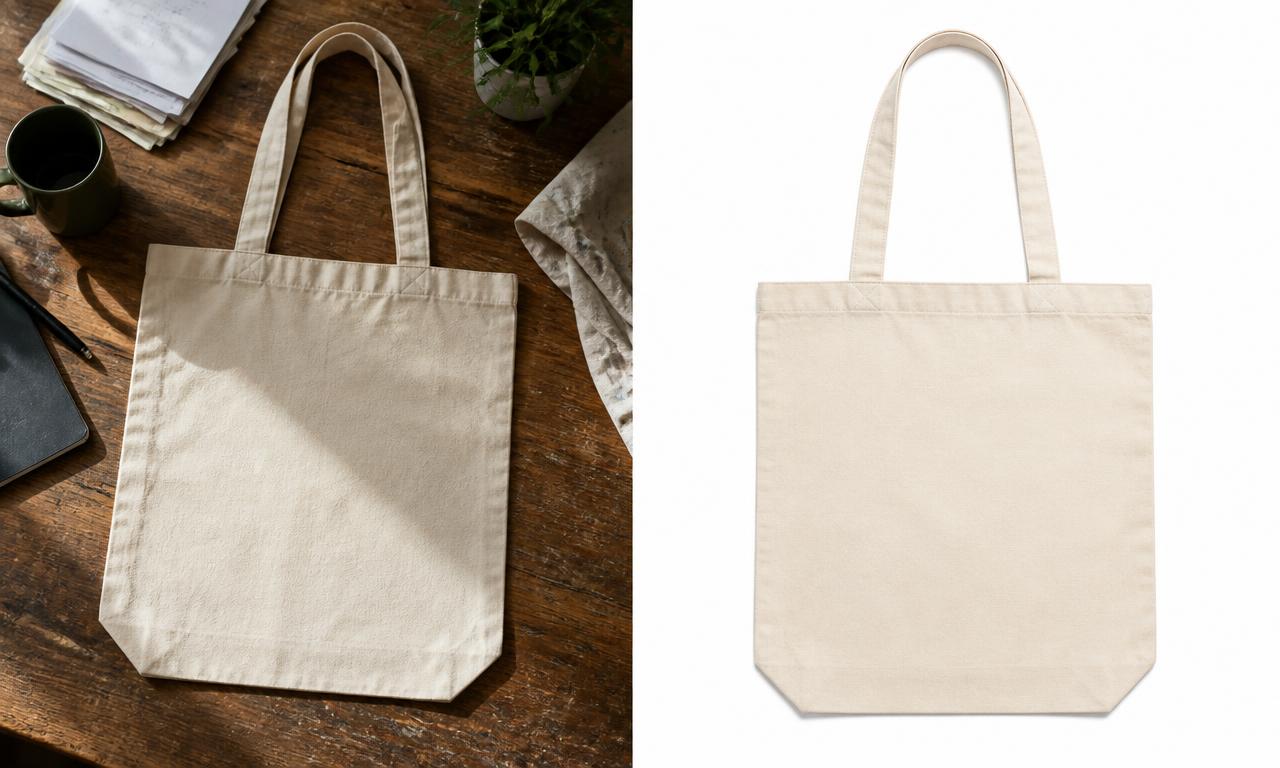
Not necessarily. Unlike some marketplaces, Shopify does not impose a background rule — the storefront is yours, and the right answer depends on the product, the category and the brand.
When a white or neutral background works well
- Catalogs with many similar items, where consistency is what makes the grid readable.
- Products judged on shape, colour and detail: electronics, homeware, tools, accessories.
- Stores that also sell on marketplaces, where clean cutouts are frequently required anyway.
- Main images, where the product should be unambiguous at thumbnail size.
When a lifestyle background is the better choice
- Products whose value depends on context or scale — furniture, apparel, decor.
- Brands whose identity is built on atmosphere rather than a clinical studio look.
- Secondary images, where showing the product in use answers real questions.
A common and effective pattern is a clean main image followed by lifestyle and detail shots. To get there from a messy source photo, the AI background remover isolates the product and the white background maker drops it onto a clean backdrop. For contextual scenes, Product Studio generates backgrounds around an existing product cutout.
How to make Shopify product images look consistent
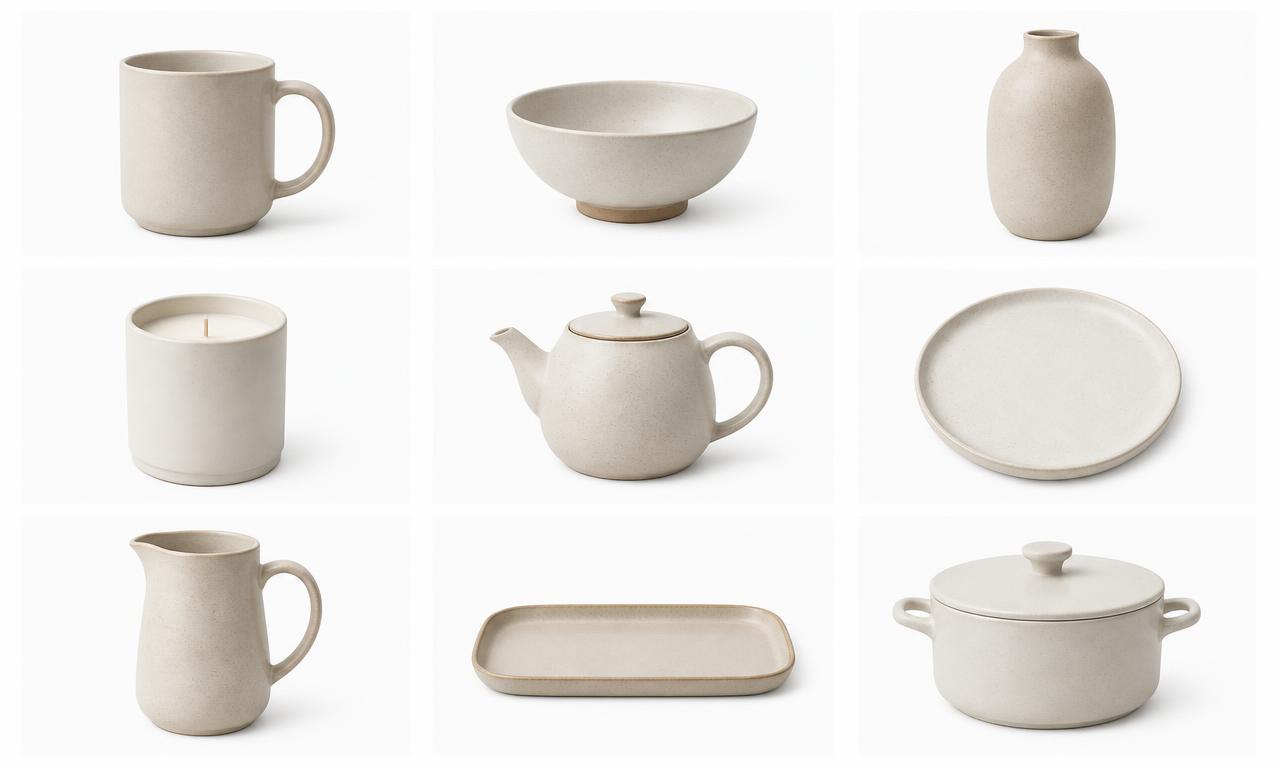
Consistency is the single change that most reliably makes a small store look established. Shoppers don't consciously notice matching margins — they notice when everything is misaligned, and they read it as carelessness.
- One aspect ratio for every product image in the catalog.
- Comparable product scale, so a mug and a teapot occupy a similar share of the frame relative to their real size.
- The same margins — pick a percentage of padding and apply it everywhere.
- The same background treatment within a collection.
- Consistent lighting direction and colour temperature, so whites stay white across products.
- Repeatable angles, for example a three-quarter hero shot for every item.
A mini workflow that keeps this manageable:
- Define the standard once — ratio, output size, margin, background, main angle. Write it down.
- Process every image against that standard, ideally in batches rather than one at a time.
- Review the collection page as a whole, not image by image. Inconsistency is only visible in the grid.
How to crop product photos for Shopify
Cropping is where most catalogs quietly go wrong. A few rules cover nearly every case:
- Cut the dead space, but leave breathing room — a product touching the frame edge looks cramped in a grid.
- Centre the product unless you have a deliberate reason not to.
- Never clip part of the product in the main image; save partial crops for detail shots.
- Preserve proportions. Add canvas to reach your target ratio rather than stretching.
- Keep the same crop logic across the catalog.
One detail specific to Shopify: your theme decides how images are displayed. Shopify automatically generates different sizes for different areas, and many themes crop or fit collection thumbnails differently from the product page. A composition that looks balanced on the product page can lose its top or sides in the grid, so always check both views after uploading.
How to optimize Shopify product images for performance
Image weight, image quality and page speed pull against each other, and the goal is a sensible balance rather than the smallest possible file. Shopify handles a meaningful part of the delivery side for you: it serves images from its CDN, generates multiple sizes for theme placements, and picks a format the shopper's browser supports.
What is still on you:
- Don't upload far more resolution than the store displays. A 2048 px square covers most themes comfortably.
- Compress before uploading so the stored original is already reasonable.
- Prefer JPEG for busy photographic images and PNG where clean edges or transparency matter.
- Limit how many heavy images load at once in galleries and on the home page.
- Measure on mobile. Desktop broadband hides problems that a phone on cellular will not.
Be sceptical of blanket speed promises, including your own. How much a page improves depends on the theme, the apps installed, the number of images and the shopper's connection — so measure your own store before and after rather than trusting a generic percentage. The image compressor lets you reduce file size and compare the result visually before you commit.
A practical Shopify product photo workflow
Ten steps, repeatable for every product:
- 1. Start from the best source photo. Sharp, well lit, correctly exposed. Reshoot rather than rescue.
- 2. Remove the background when needed. Check hair, handles, straps and transparent areas closely.
- 3. Fix the crop. Straighten, centre, trim dead space, keep proportions.
- 4. Choose the background. Clean for the main image; contextual for secondary shots.
- 5. Resize to your standard. 2048 x 2048 px is a solid default for square catalogs.
- 6. Compress sensibly. Reduce weight, then zoom in to confirm detail survived.
- 7. Inspect quality. Edges, texture, colour accuracy against the real product.
- 8. Check mobile. Product page and collection grid, on a real device.
- 9. Compare with the catalog. Does it belong next to your other products?
- 10. Upload and review the live page. Confirm the featured image, order and zoom behaviour.
Steps 2 to 6 are the repetitive part, and the part worth batching. Our guide to batch background removal covers how to run a whole catalog through the same treatment.
12 Shopify product image mistakes to avoid
- Blurry source photos. No edit recovers missing focus — reshoot on a tripod or steady surface.
- Uploading enormous untouched files. Resize to your display standard first.
- Crushing quality to save kilobytes. Back off the compression until texture returns.
- Mixed dimensions. Pick one output size and apply it catalog-wide.
- Inconsistent product scale. Standardise how much of the frame the product fills.
- Careless crops. Set a margin rule and reuse it.
- Cut-off products in the main image. Keep the whole item in frame; crop only for detail shots.
- Distracting backgrounds. Remove the clutter or replace the background entirely.
- Inconsistent lighting and white balance. Shoot in the same conditions and correct colour afterwards.
- Ignoring mobile. Most shoppers are on a phone — review there first.
- Mixing visual styles. Choose studio or lifestyle per collection and stay with it.
- Never reviewing the published page. Open every new product page once after upload.
Shopify product photo optimization checklist
Items marked (S) reflect Shopify specifications; the rest are best practice.
- ☐ Product is sharp and clearly visible
- ☐ Image is under 5000 x 5000 px / 25 MP (S)
- ☐ File is under 20 MB (S)
- ☐ File format is one Shopify accepts, ideally PNG or JPEG (S)
- ☐ Aspect ratio matches the rest of the catalog
- ☐ Product is not stretched or distorted
- ☐ Crop is intentional, with consistent margins
- ☐ Background supports the product and the brand
- ☐ Quality survives zooming to 100%
- ☐ File size is reasonable for the web
- ☐ Image looks right on a phone
- ☐ Product scale matches similar items
- ☐ The live product page and collection grid have been reviewed
Optimize Shopify product photos faster with MagicBG
The steps above are all doable by hand. MagicBG exists to make the repetitive ones faster, and the tools map directly onto the workflow:
- AI background remover — isolate the product from a cluttered source photo.
- White background maker — place the cutout on a clean, consistent backdrop.
- Image cropper and image resizer — standardise framing and output dimensions.
- Image compressor — reduce file weight with a visual before/after check.
- Image converter — move between PNG, JPEG and WebP.
- Marketplace Image Optimizer — apply one set of rules across a batch of images.
- Product Studio — generate backgrounds and scenes around a product cutout.
- Complete Listing Generator — build a full set of listing images and copy at once.
These are optional conveniences, not requirements: nothing here is endorsed by Shopify, and no tool can promise faster pages or more sales. What it can do is take a raw photo and return a cleaner, consistently sized product asset in a fraction of the time.
Shopify product photo optimization FAQ
What size should Shopify product images be?
Shopify accepts images up to 5000 x 5000 px or 25 megapixels, and states that square images of 2048 x 2048 px usually display best. That size is a sensible default for most stores.
What is the best image format for Shopify product photos?
Shopify's Help Center lists PNG as the best file type for most product images, followed by JPEG. WebP, HEIC, GIF and several other formats are also accepted.
Does Shopify require a specific image ratio?
No single ratio is required. Admin uploads must fall between 100:1 and 1:100, which leaves almost every practical shape available. Square is a common choice because it fits theme grids predictably.
Should Shopify product photos have a white background?
Shopify doesn't require it. White or neutral backgrounds suit main images and large catalogs; lifestyle backgrounds often work better for secondary shots and for products that need context.
How do I reduce Shopify product image file size?
Resize to the dimensions your theme actually displays, then compress before uploading and check the result at 100% zoom. Choosing JPEG for detailed photographic images also helps.
How do I make Shopify product images load faster?
Upload appropriately sized, already-compressed files and avoid loading many heavy images at once. Shopify serves images from its CDN, generates theme-specific sizes and picks a supported format automatically, so measure your own store before and after any change rather than relying on generic figures.
Should all Shopify product images have the same dimensions?
Shopify doesn't require it, but matching dimensions keep collection grids aligned and the catalog looking deliberate, so it's worth standardising.
How do I make product photos consistent across a Shopify store?
Define a standard — ratio, output size, margin, background and main angle — apply it to every image in batches, then review the collection page as a whole rather than each photo alone.
What resolution is best for Shopify product images?
Around 2048 px on the long side covers zoom and high-density screens for most stores. Keep a larger master file for future edits, but publish the trimmed version.
How do I optimize product photos before uploading them to Shopify?
Clean the background, fix the crop, resize to your standard, compress, then check quality and mobile display before uploading — the ten-step workflow above.
Bottom line
Good Shopify product images are not just about resolution. They come from a balance of quality, consistency, presentation, file size and shopper experience — a sharp photo with a careless crop and a mismatched background still hurts the catalog. Set a standard, apply it to every product, and check the result on a phone.
The wider workflow is the same for any channel: clean the product photo, optimize the image, build a consistent set of product assets, then prepare marketplace-ready content. If you also sell elsewhere, our guide to Amazon product image requirements and the walkthrough of building complete marketplace listings pick up where this one ends. When you're ready, start with the background remover and work through the catalog.
Official Shopify documentation: Product media types, Adding product media, and Uploading and managing files. Platform capabilities and specifications change, so confirm anything technical in the Shopify Help Center before a large upload.