May 16, 2026 · 11 min read
Remove Background from AI-Generated Images (ChatGPT, Midjourney) 2026
Remove the background from AI-generated images (ChatGPT, Gemini, Midjourney) in 2026 — prompts to avoid, best free cutout tools, and clean PNG export.
AI image generators exploded in 2025 and never slowed down. ChatGPT's image tool, Google's Gemini Nano Banana, Midjourney v7, DALL·E 4, and Flux are now part of every marketer's daily workflow. But there is one frustrating limitation almost nobody talks about: none of the major generators can produce a truly transparent PNG on the first try. You ask for "a red sneaker on a transparent background" and you get a red sneaker on a white background, or worse, a red sneaker on a fake checkerboard pattern baked into the pixels. This guide shows you the exact two-step workflow that fixes it in under ten seconds.
Why AI-generated images almost always need background removal
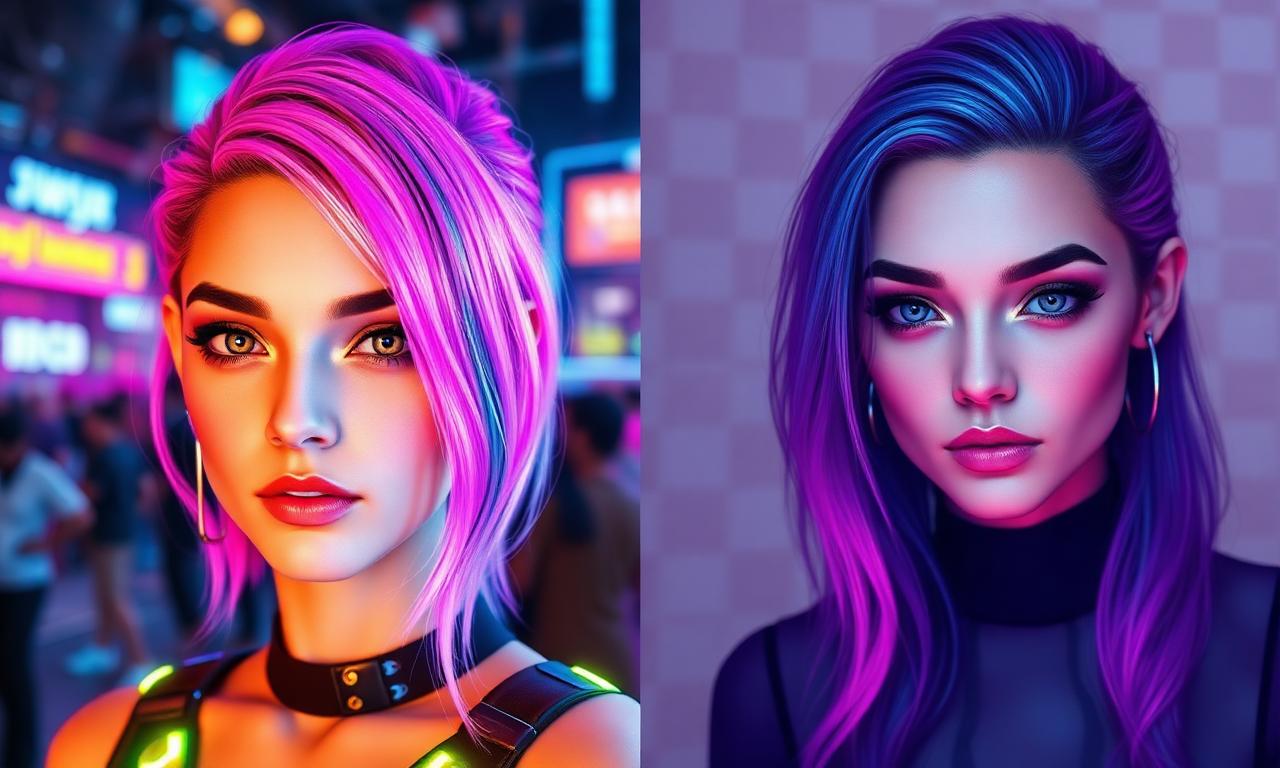
Diffusion models like the ones behind ChatGPT and Gemini are trained on billions of photos scraped from the web. Almost every one of those training photos has a background. So when the model "imagines" a subject, it imagines a context for it too: a forest, a studio, a kitchen counter, a futuristic cityscape. Even when you literally type "on a transparent background", the model has no real concept of transparency — these diffusion models just generate a plausible-looking grey-and-white checkerboard or a flat white fill that pretends to be transparent but isn't. The limitation is acknowledged in OpenAI's own DALL·E documentation.
The fix is not to argue with the prompt. The fix is to generate the best possible image, then strip the background with a dedicated AI cutout tool. This two-step "generate then isolate" pipeline is how every professional designer working with AI images in 2026 actually ships assets.
The two-step workflow at a glance
- Step 1 — Generate your image in ChatGPT, Gemini, Midjourney, DALL·E, or Flux with a prompt that emphasizes a clean, contrasting background (not transparency).
- Step 2 — Cut out the subject in a browser-based AI tool like MagicBG. Download the transparent PNG.
That's it. The whole thing takes well under a minute even for high-resolution outputs. Below, we walk through each generator and the exact prompt tweaks that make the cutout step trivial.
Removing the background from a ChatGPT image
OpenAI's image generation inside ChatGPT (gpt-image-2 and the newer gpt-image-3 preview) is great at characters, products, and stylized illustrations. To make the background-removal step as clean as possible, append one of these phrases to your prompt:
- "…on a plain white seamless studio background, isolated subject, no shadows" — best for products and objects.
- "…on a flat pastel gradient background, the subject fully contained within the frame" — best for characters and portraits where you want soft edge separation.
- "…centered composition, generous padding around the subject" — prevents the subject from touching the canvas edge, which always confuses cutout AI.
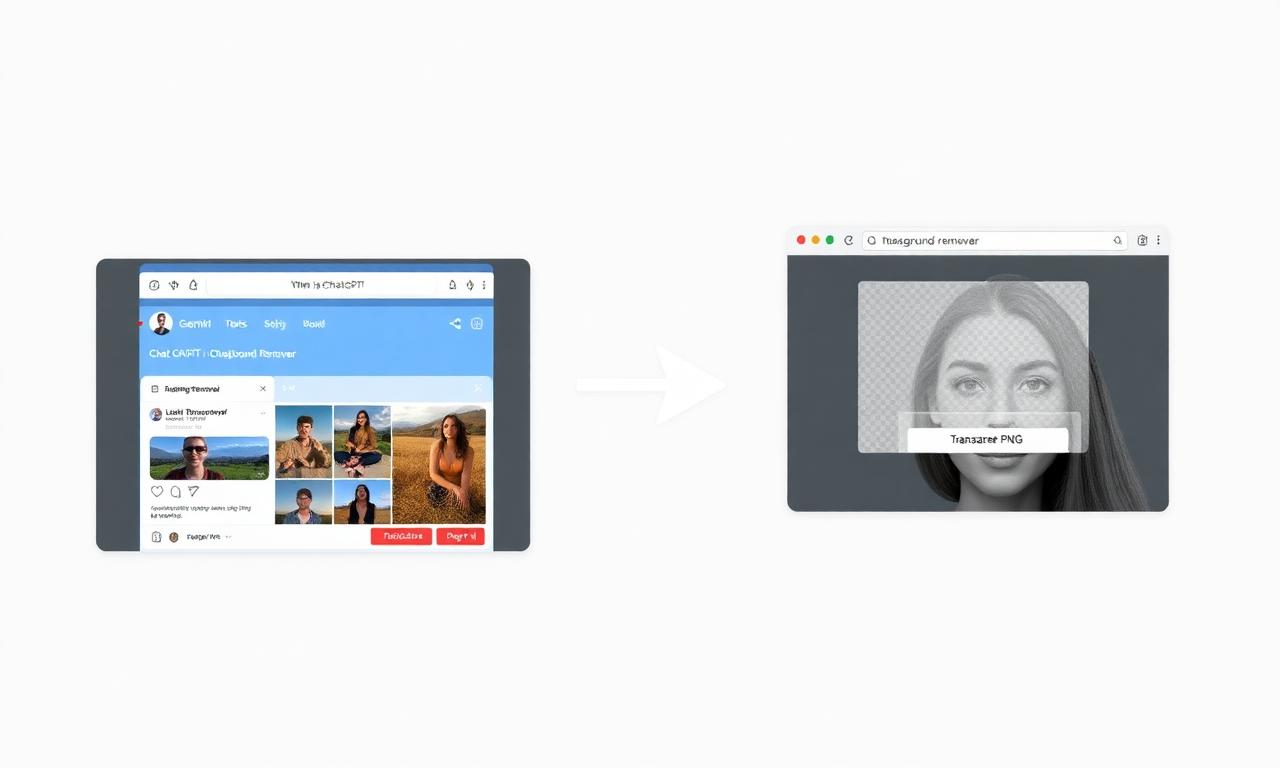
Once ChatGPT delivers the image, right-click and save it, then drop it into the MagicBG home page. The cutout runs entirely in your browser using WebGPU — no upload, no signup, no watermark. If you need a deeper explainer on what's actually happening under the hood, our post on how AI background removal works breaks down the segmentation model in plain language. There's also a dedicated walkthrough at can ChatGPT remove image backgrounds if you want to know exactly where ChatGPT's native tools fall short.
Removing the background from a Gemini / Nano Banana image
Google's Gemini 3 image model (codename "Nano Banana 2") is currently the strongest model for photorealistic product shots and editing existing photos. The default outputs tend to invent rich, atmospheric backgrounds — gorgeous, but useless if you want to drop the subject onto a Shopify listing or a marketing banner.
Prompting tips that make the cutout cleaner:
- Use the phrase "product photography, infinite cyclorama background, soft even lighting" for any e-commerce subject.
- Add "shot on Hasselblad, 85mm, f/8, sharp focus on subject" to nudge the model toward a shallow depth of field that makes the subject pop from its background.
- Avoid prompts that include the word "surrounded by" — that almost guarantees a busy background that fights with the cutout algorithm.
Gemini outputs at up to 2K resolution natively, so the cutout will retain plenty of detail for use in print or large-format social posts. For the export settings beyond cutout, see our breakdown of PNG vs WebP for transparent images.
Removing the background from a Midjourney image
Midjourney is the trickiest of the bunch because its aesthetic defaults love dramatic backgrounds — moody fog, cinematic bokeh, painterly skies. These look incredible as standalone art but make AI cutout harder because the edges of the subject blend into the atmosphere.
The Midjourney-specific switches that help:
--style rawturns off the painterly aesthetic and gives you a more literal subject on a more literal background.--no background, scenery, environmentas a negative prompt removes most of the ambient noise.--ar 1:1keeps the subject centered, which the cutout model handles best.- Append "product photograph against pure white seamless backdrop" at the start of your prompt — Midjourney weights early tokens heavily.
One quirk to watch: Midjourney sometimes generates a subtle vignette around the canvas edges. If you see a soft dark halo after cutout, the cause is the vignette, not the cutout AI. Our guide on fixing jagged edges covers the defringe step that cleans this up in two clicks.
Removing the background from DALL·E and Flux images
DALL·E 4 (still available through Microsoft Designer and the OpenAI API) and Flux 1.1 Pro (the go-to model on Replicate and Together AI) both produce images that play very well with cutout AI. Their training data is heavier on commercial-style stock photography, so the subject is usually already well separated from the background.
The only thing to watch is resolution. Flux defaults to 1024×1024, which is fine for social media but soft on a 4K display. If you need print quality, generate at 1440×1440 or higher and let the cutout model preserve all the detail. Browser-based cutouts handle anything up to 4K without breaking a sweat.
The ten-second cutout, step by step
- Save your generated image as a PNG or JPG.
- Open the MagicBG tool in any modern browser (Chrome, Edge, Safari, Arc, Brave — anything from 2023 onward works).
- Drag and drop the image onto the upload zone. The AI model loads on first visit and stays cached after that — subsequent images cut out in roughly two seconds.
- Preview the result on the built-in checkerboard. If you see a halo, toggle the defringe slider.
- Download as transparent PNG. Done.
The entire pipeline runs locally in your browser. Your AI-generated image never touches a server, which matters if you're producing client work under NDA or experimenting with concepts you do not want indexed in someone else's training set.
What to do with your cutout next
A transparent PNG of an AI-generated subject is one of the most versatile assets in modern marketing. A few of the highest-leverage uses we've seen creators ship in the last six months:
- Social media stickers and reaction images for Instagram Stories, TikTok, and Discord — drop the cutout onto any background, any video, any meme template.
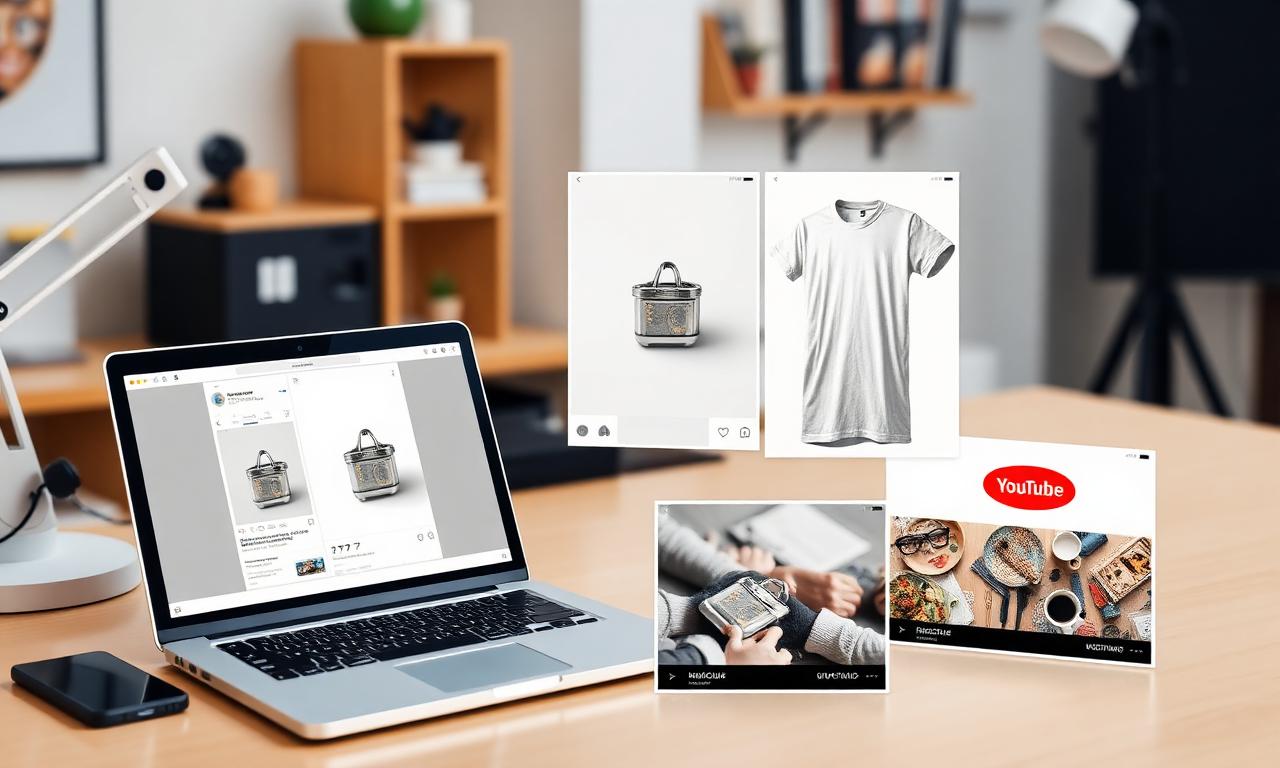
- E-commerce product mockups when you don't have a real product yet. Generate the concept, cut it out, paste it onto a flat lay or lifestyle background. We have a deep dive for TikTok Shop product photos and another for Amazon listing photos.
- YouTube thumbnails — AI-generated character cutouts dramatically outperform stock photography on click-through rate. The full thumbnail recipe is in our thumbnail guide.
- LinkedIn profile photos when you don't want to schedule a photoshoot. Generate a flattering portrait, cut it out, drop in a neutral studio background. The full method is in the LinkedIn headshot guide.
- Brand merchandise mocked up on t-shirts, mugs, posters — transparent PNGs are the input format every print-on-demand platform expects.
Common mistakes to avoid
- Don't ask the AI for a "transparent background" in the prompt. Models cannot generate true transparency. The phrase wastes tokens and often produces a fake-looking checkerboard baked into the pixels — which is then a nightmare to remove.
- Don't upscale before cutout. Cutout the original resolution first, then upscale the transparent PNG. Upscaling first amplifies background noise and bleeds it into the subject edges.
- Don't trust ChatGPT or Gemini to "edit out" the background. Inpainting-based background removal inside the same model that generated the image almost always introduces subtle color shifts and halos. A dedicated segmentation model does a cleaner job in a fraction of the time.
- Don't save as JPG. JPG does not support transparency. If you save your cutout as JPG, the transparent areas will fill with white. Always export PNG (or WebP if you want a smaller file — see the PNG vs WebP comparison).
Is it legal to remove the background and use the result commercially?
The cutout itself is a transformation of an image you already have rights to. The legal question is really about the source AI image, not the cutout. OpenAI and Google both grant commercial rights to images generated by paying users (and even by most free-tier users with some caveats). Midjourney requires a paid subscription for commercial use. DALL·E and Flux outputs are similarly permissive on paid tiers. The MagicBG tool itself adds no restrictions of any kind: free for personal and commercial use, no watermark, no signup, no resolution cap.
The longer breakdown — including resellability, marketplace compliance, and licensing edge cases — lives in the full background-removal FAQ.
Bottom line
AI image generators are amazing at imagining a subject but stubbornly bad at producing a truly transparent PNG. The fix is a two-step pipeline that any creator can run in under a minute: generate in your favorite model, cut out in a browser-based AI tool. Open the MagicBG home page, drop in your latest ChatGPT, Gemini, or Midjourney creation, and ship a clean transparent PNG before your coffee cools.